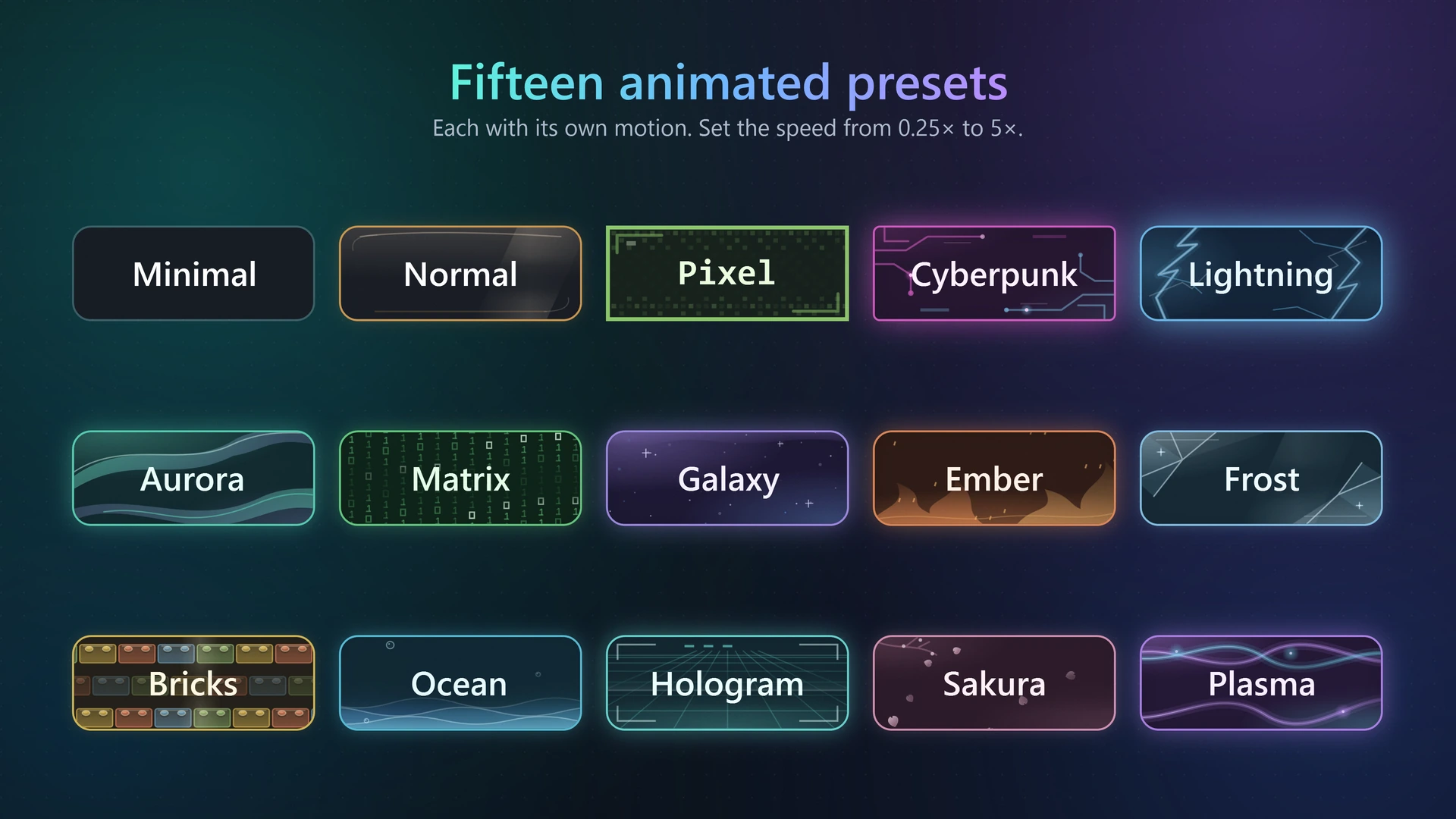
All fifteen presets at a glance 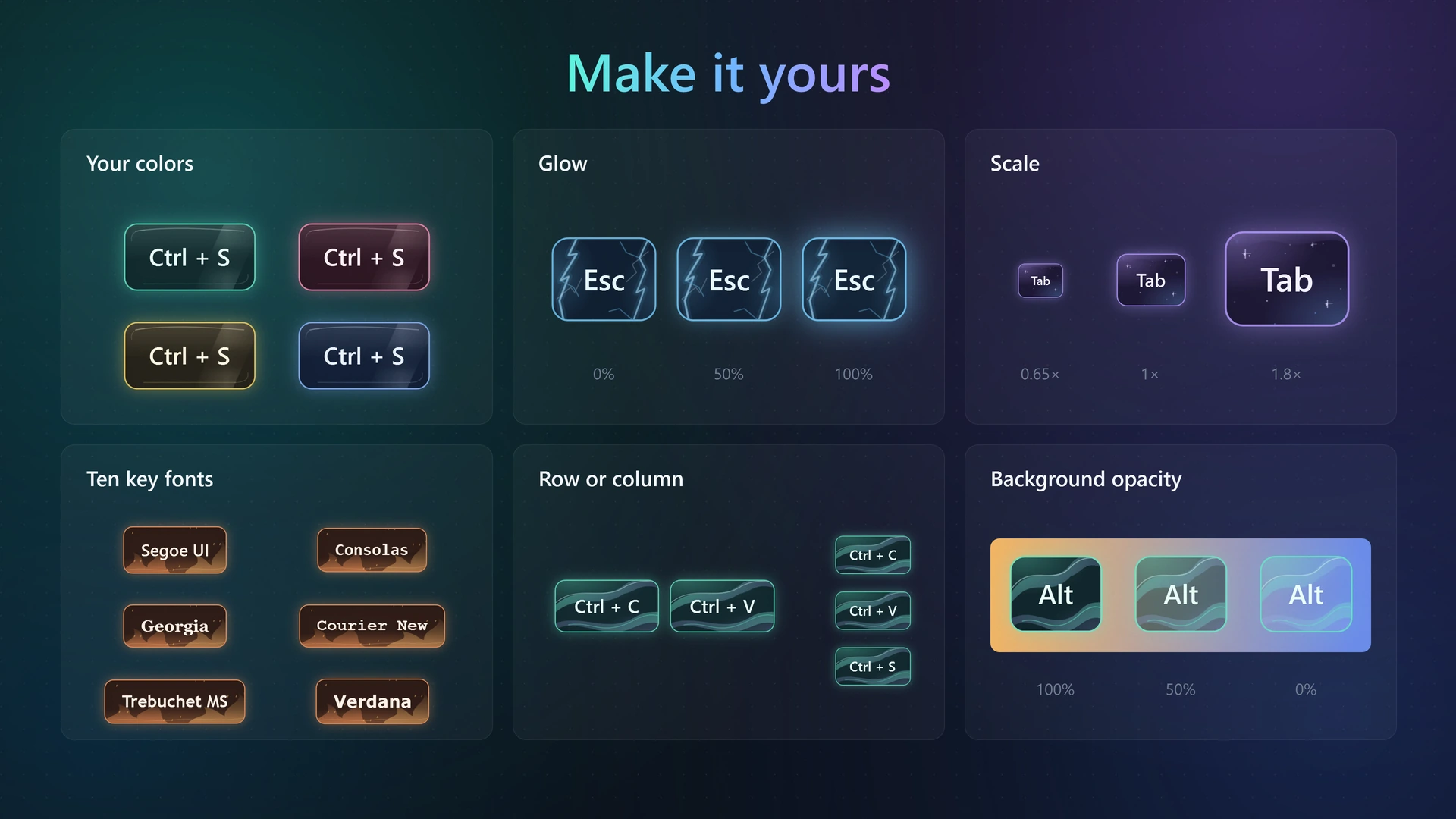
Colors, glow, scale, key fonts, layout and background opacity 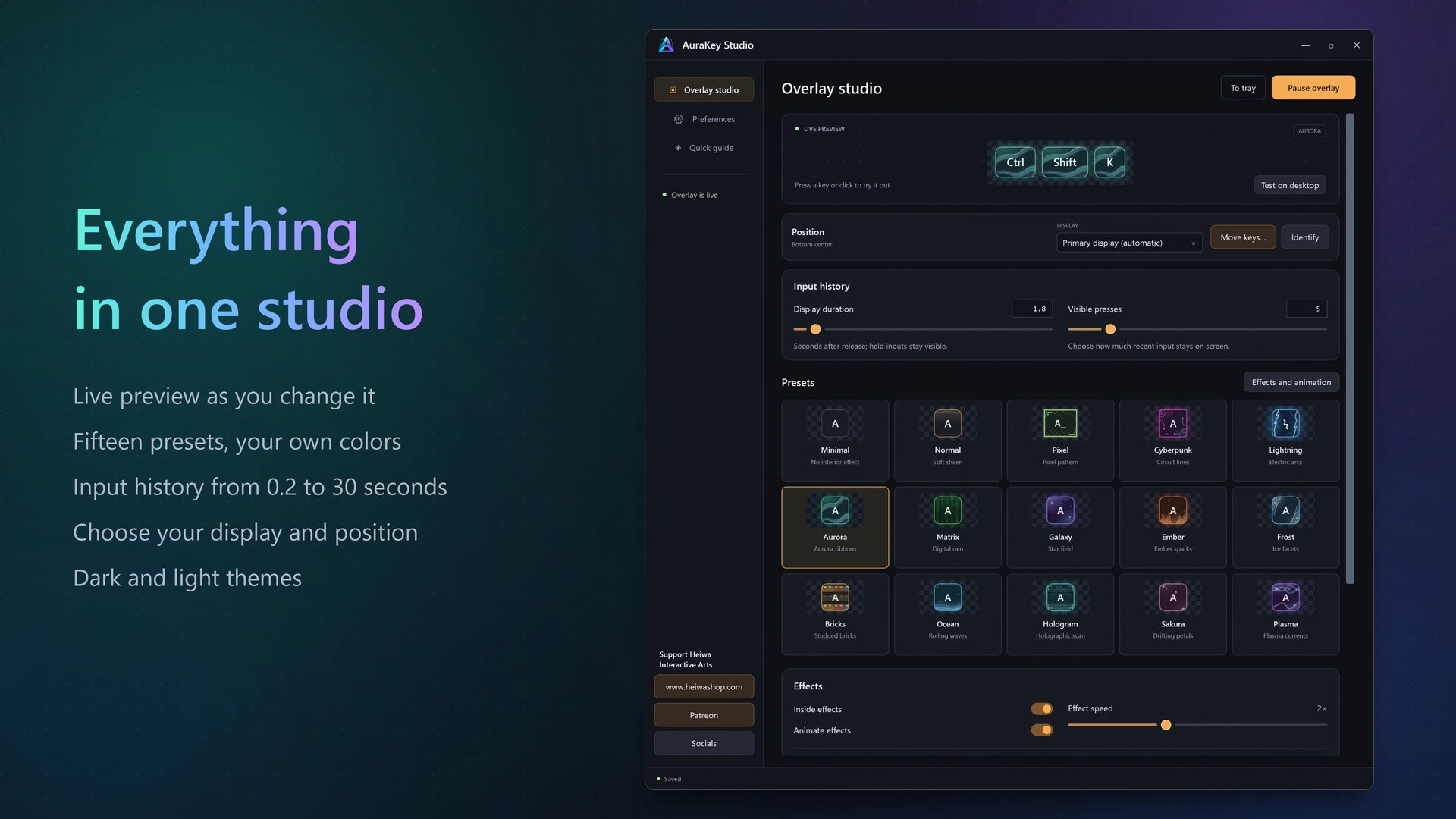
The studio with live preview, input history and presets 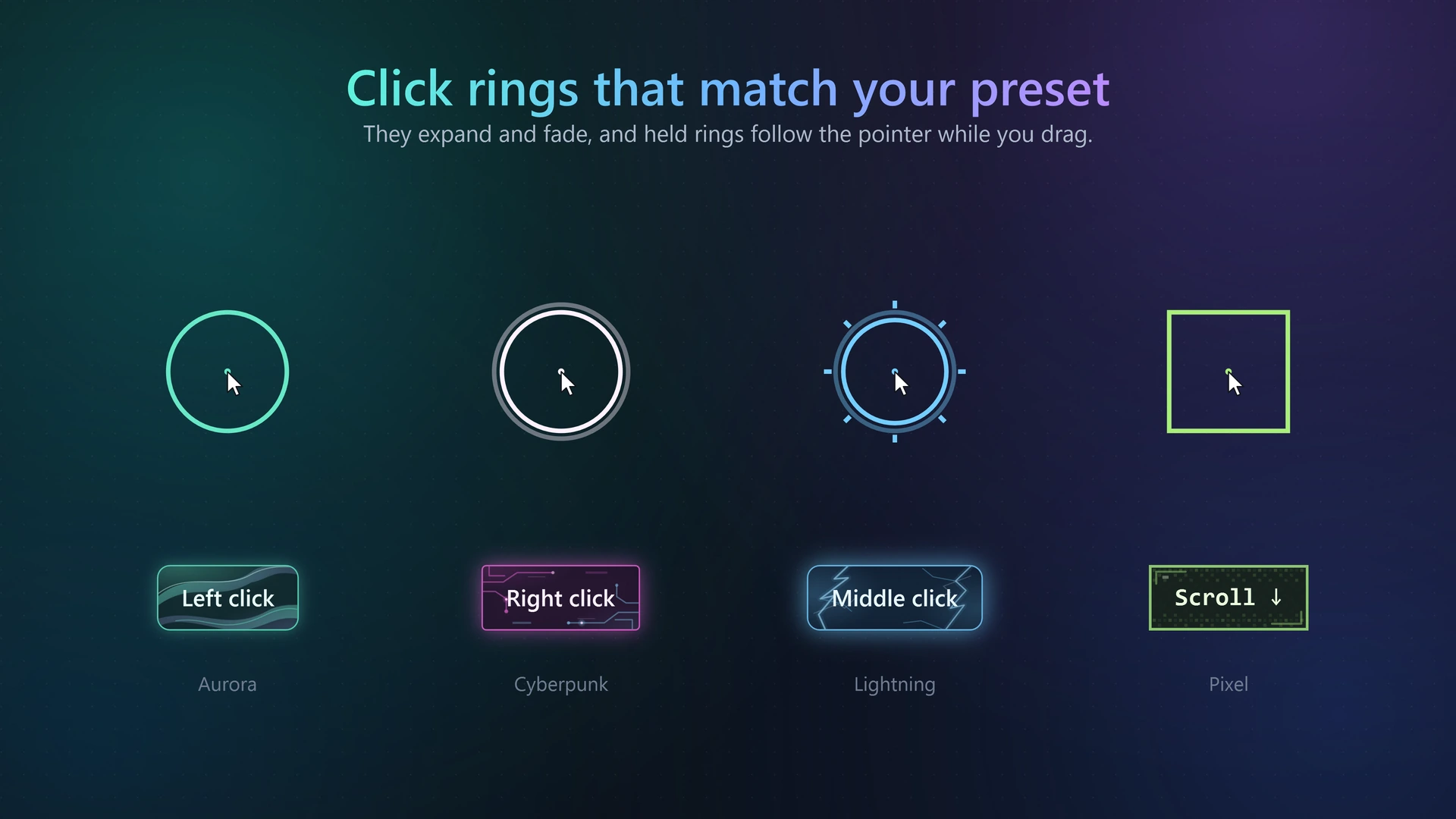
Click rings that match your preset 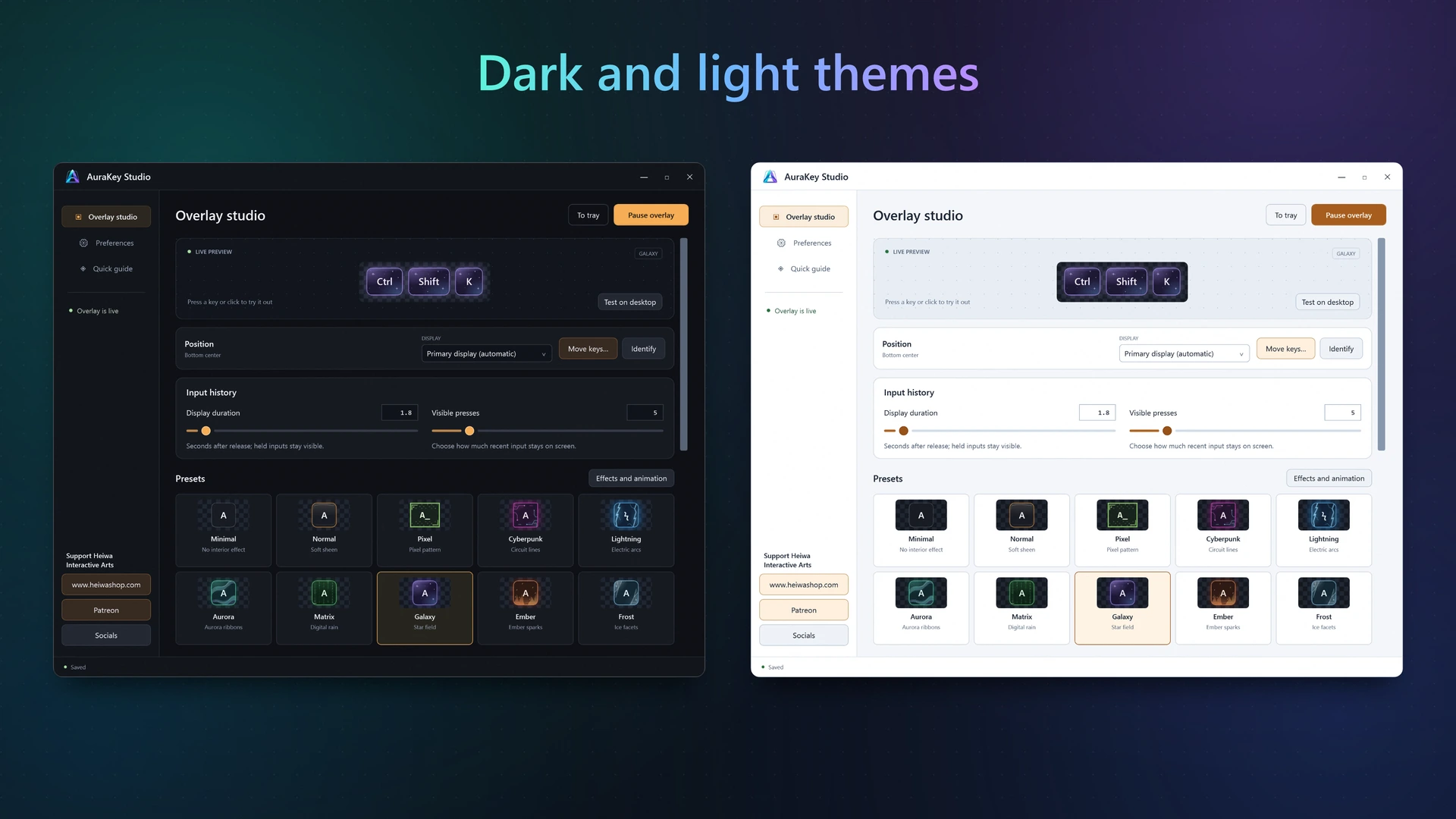
Dark and light application themes 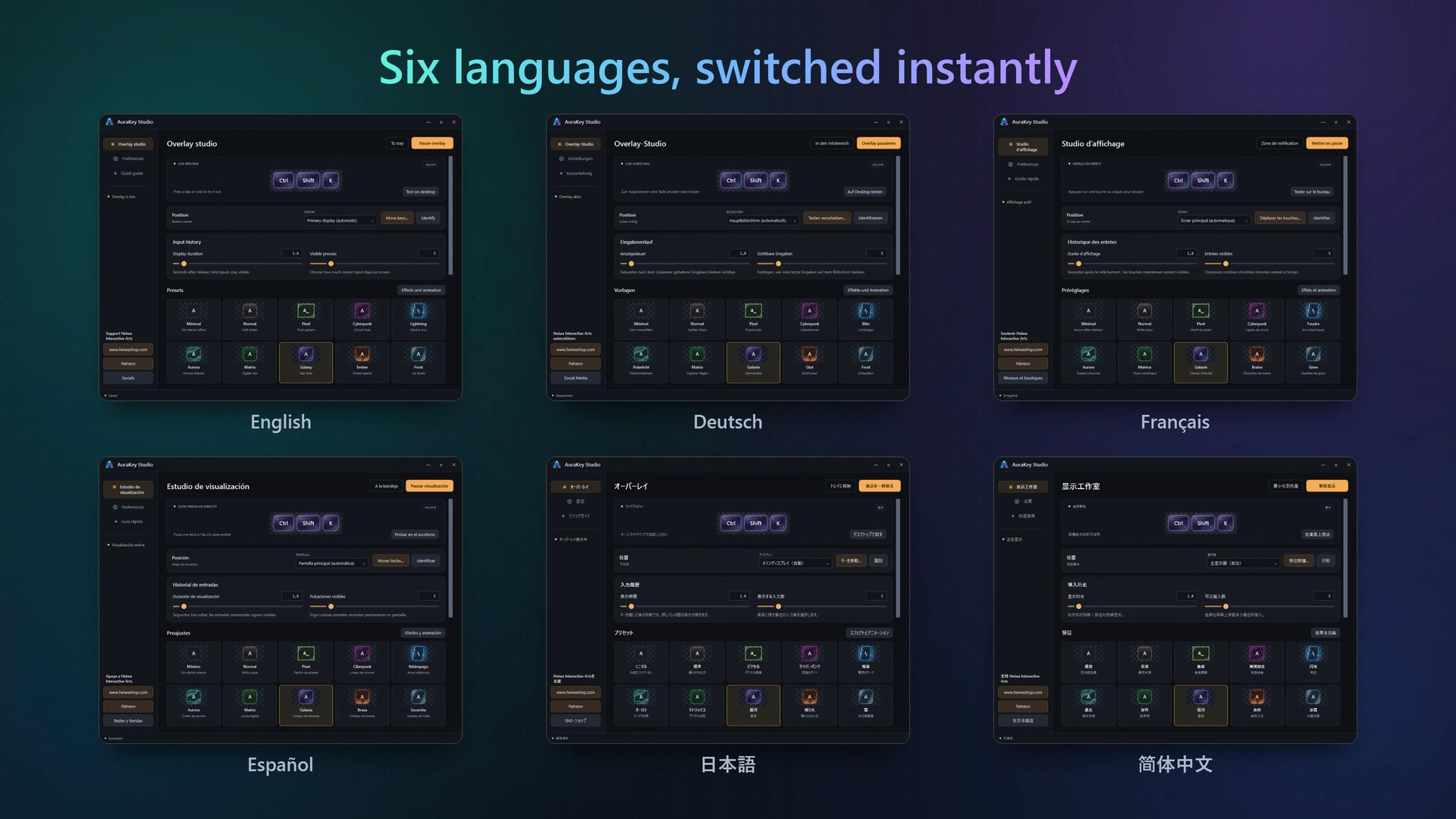
The studio in all six languages Real capture: the overlay over a real program (scripted input, no sound) 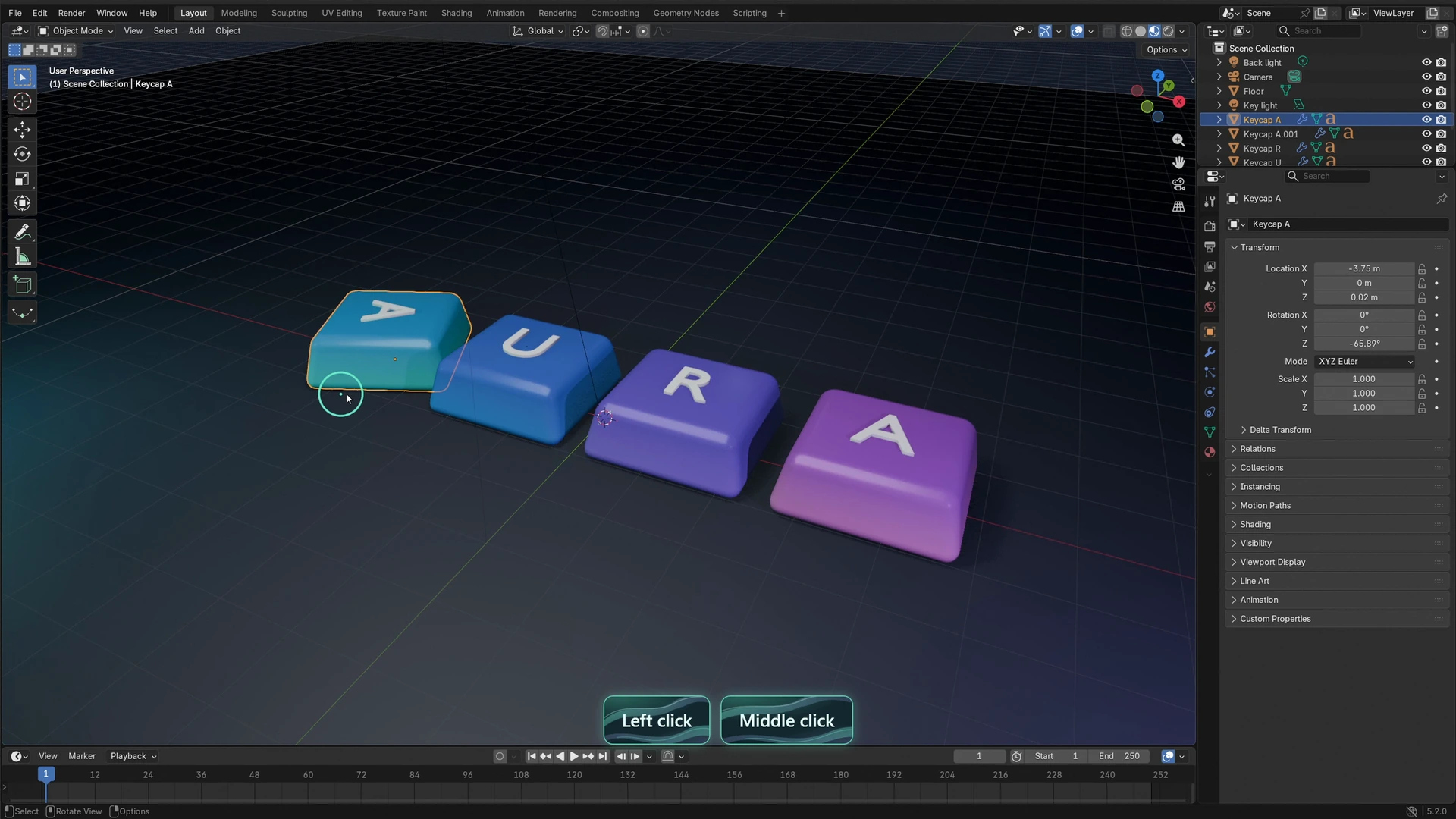
Real capture: the overlay over a 3D program (scripted input) 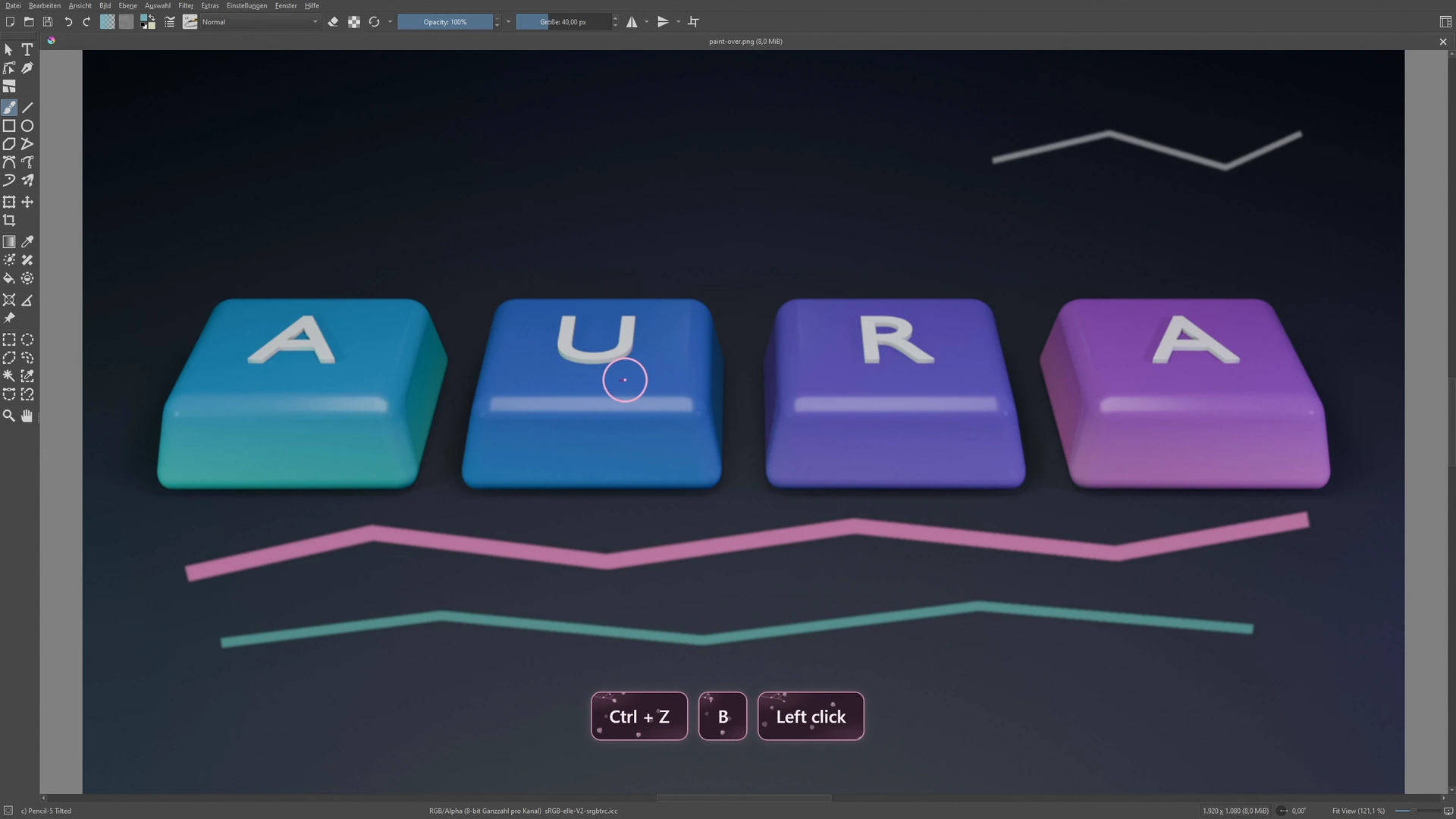
Real capture: the overlay over a painting program (scripted input) 
AuraKey Studio: keyboard and mouse overlays for Windows
Overview
AuraKey Studio shows the keys you press and the mouse buttons you click as a clean on-screen overlay, so your viewers can follow every step in recordings, tutorials and presentations.
Pick one of fifteen presets, from the plain Minimal style to animated looks like Aurora, Matrix, Cyberpunk or Sakura. Then set your own colors, glow, size, key font and how long each key stays on screen. The live preview shows every change as you make it.
Your typing stays on your PC. AuraKey Studio processes keyboard and mouse input locally. It saves no keystroke log and sends nothing to us, AI services or anyone else. Anyone watching your recording or screen share can still see the keys, so pause the overlay before you type a password or other private text. Shortcuts-only mode does not detect password fields.
Use it for your work. Personal, commercial, educational and nonprofit use are all allowed. The videos, streams and courses you make with it are yours to publish and sell, with no royalties and no credit required.
About the visuals: the trailer and the two pictures marked “Illustration” use stand-in desktops made for them. The keycaps, effects and studio screens are the app’s own rendering. Items marked “Real capture” show the overlay over real programs, with scripted input.
License: AuraKey Studio License Agreement
Features
- Keyboard and mouse overlay: key presses, shortcuts, mouse buttons and scrolling, each of which can be switched on or off
- Click rings: adjustable size, thickness and fade time. Held rings follow the pointer while you drag
- 15 presets: Minimal, Normal, Pixel, Cyberpunk, Lightning, Aurora, Matrix, Galaxy, Ember, Frost, Bricks, Ocean, Hologram, Sakura and Plasma. Every preset except Minimal has its own animation, with a speed from 0.25x to 5x, or still artwork if you prefer
- Your own look: colors, glow, scale, background opacity from 0 to 100%, ten key fonts, and a horizontal or vertical layout
- Input history: show 1 to 30 presses, each for 0.2 to 30 seconds after release. Held keys stay visible, and repeated presses can be grouped with a count
- Any display: choose the monitor, identify your displays and drag the overlay into place
- Focus options: shortcuts-only mode, hide single modifier keys or repeat counts, reduced motion
- Your own global shortcuts to pause the overlay or open the studio
- Tray app: pause and resume from the tray, with optional start at Windows sign-in, start in the tray and close to the tray
- Six languages: English, Deutsch, Français, Español, 日本語 and 简体中文
- Dark and light themes, plus export and import of your settings
Good to know
- Windows only: AuraKey Studio doesn’t work on Mac at the moment.
Found a problem, or something that doesn't work as described? Please tell us: we read every report and do our best to fix it.
Compatibility
- Windows 10 and 11 (64-bit). There is no Mac or Linux version.
- Any Windows-compatible keyboard (wired, wireless or laptop) and mouse. Key labels follow your keyboard layout.
- Recording: use your recorder’s Display Capture mode. Capturing a single application or window usually leaves the overlay out.
- Limits: exclusive full-screen programs, programs running as administrator and protected Windows screens can restrict the overlay or the input it sees.
- Keys that Windows doesn’t report (some Fn and vendor-specific keys) can’t be shown. With an IME, the overlay shows the key presses, not the finished text.
- Not every keyboard model and IME has been tested individually.
System requirements
- Windows 10 or 11 (64-bit)
- About 200 MB of disk space
Installation
- Download
AuraKeyStudio-1.0.0-Setup.zipfrom My Products and unzip it. The Quick Start guide and the license agreement are separate downloads next to it. - Run
AuraKeyStudio-1.0.0-Setup.exe, choose your language, accept the license agreement and pick a folder and optional shortcuts. - Start AuraKey Studio. To reopen the studio later, double-click its tray icon.
This release is not code-signed, so Windows SmartScreen may ask for confirmation first: click More info, then Run anyway.
To uninstall, use Windows Settings > Apps. Your preferences stay on the PC for a later reinstall. To remove them too, delete the folder %LOCALAPPDATA%\AuraKey Studio.
Versions and changelog
1.0.0Latest
First release.
Reviews
No reviews yet.
Bought AuraKey Studio? Sign in to write a review.