Drag over the area to record. The red frame normally stays out of the recording; it was made visible for this picture 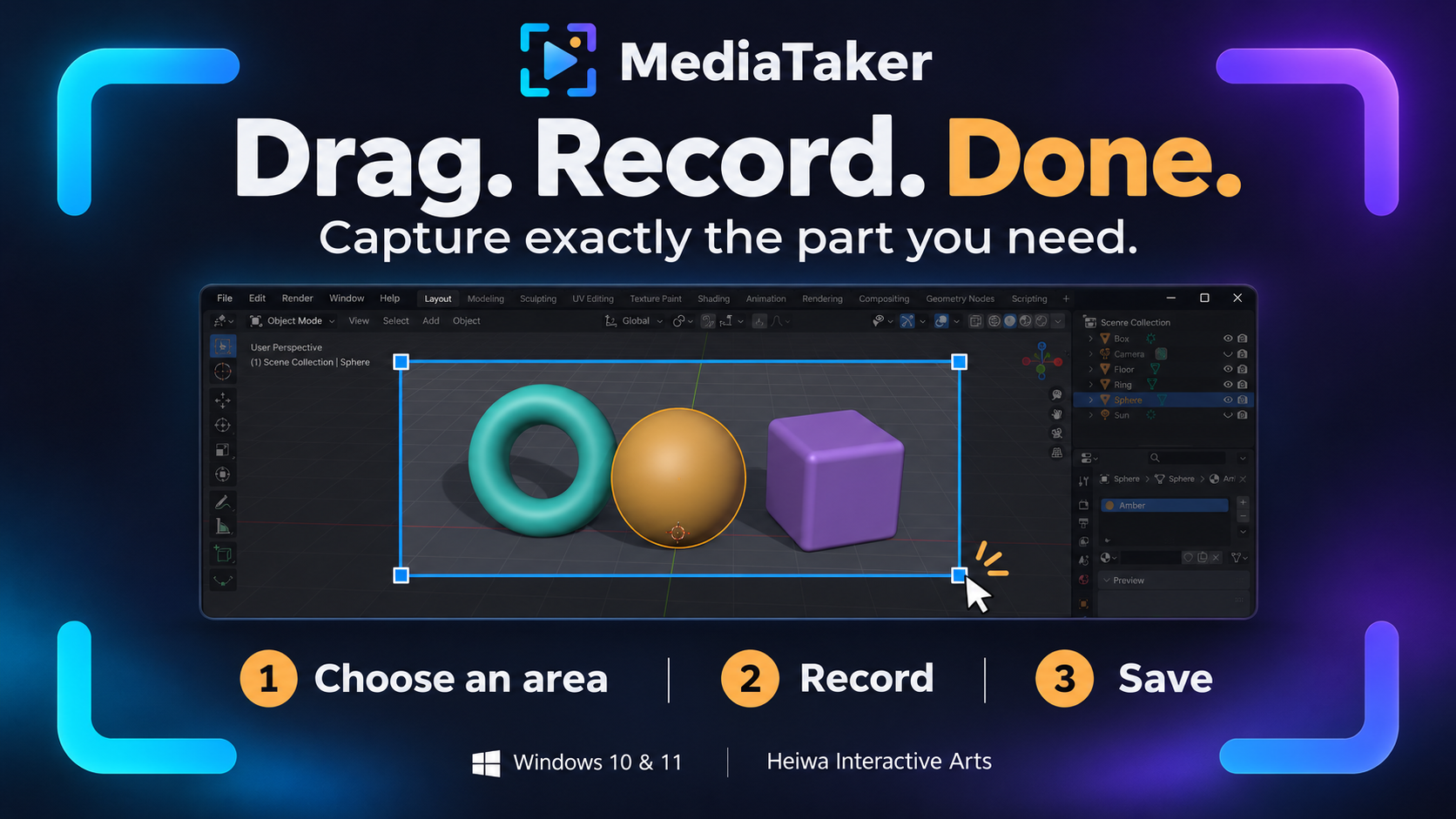
The editor: pen, highlighter, arrows, boxes, circles, text, numbered steps and cover boxes 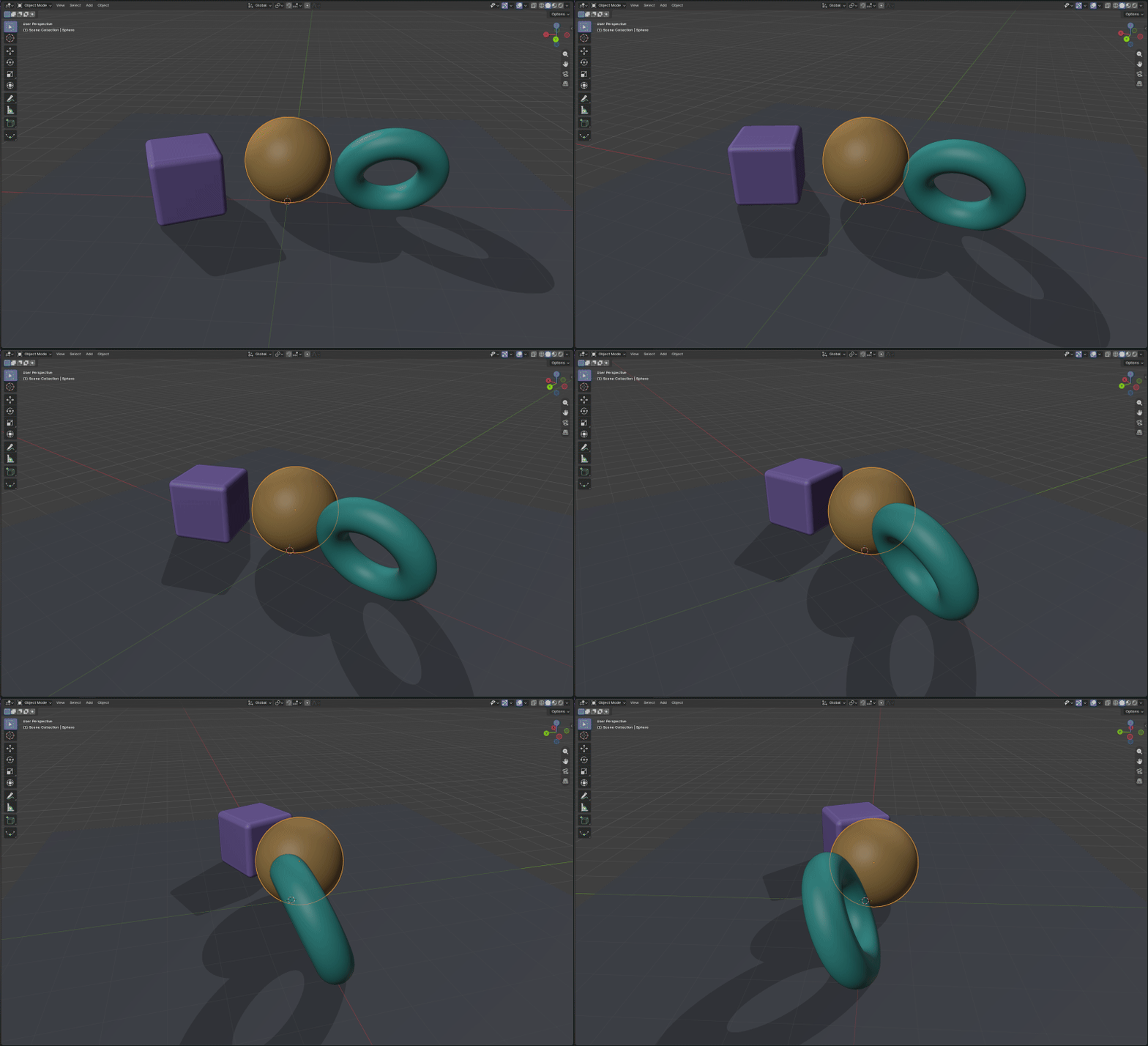
A real GIF recorded with MediaTaker: a 3D program's view turning 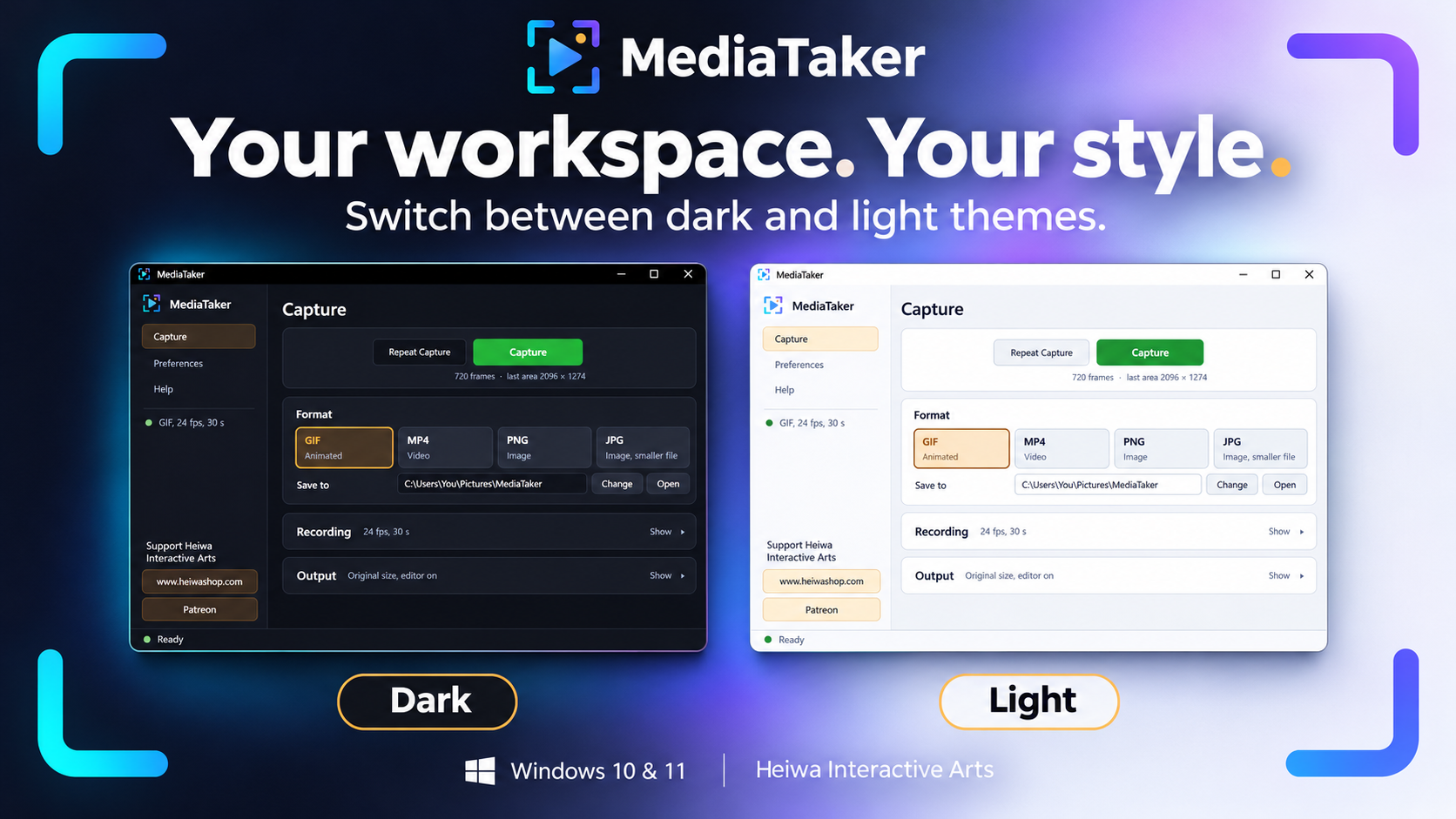
Dark and light themes 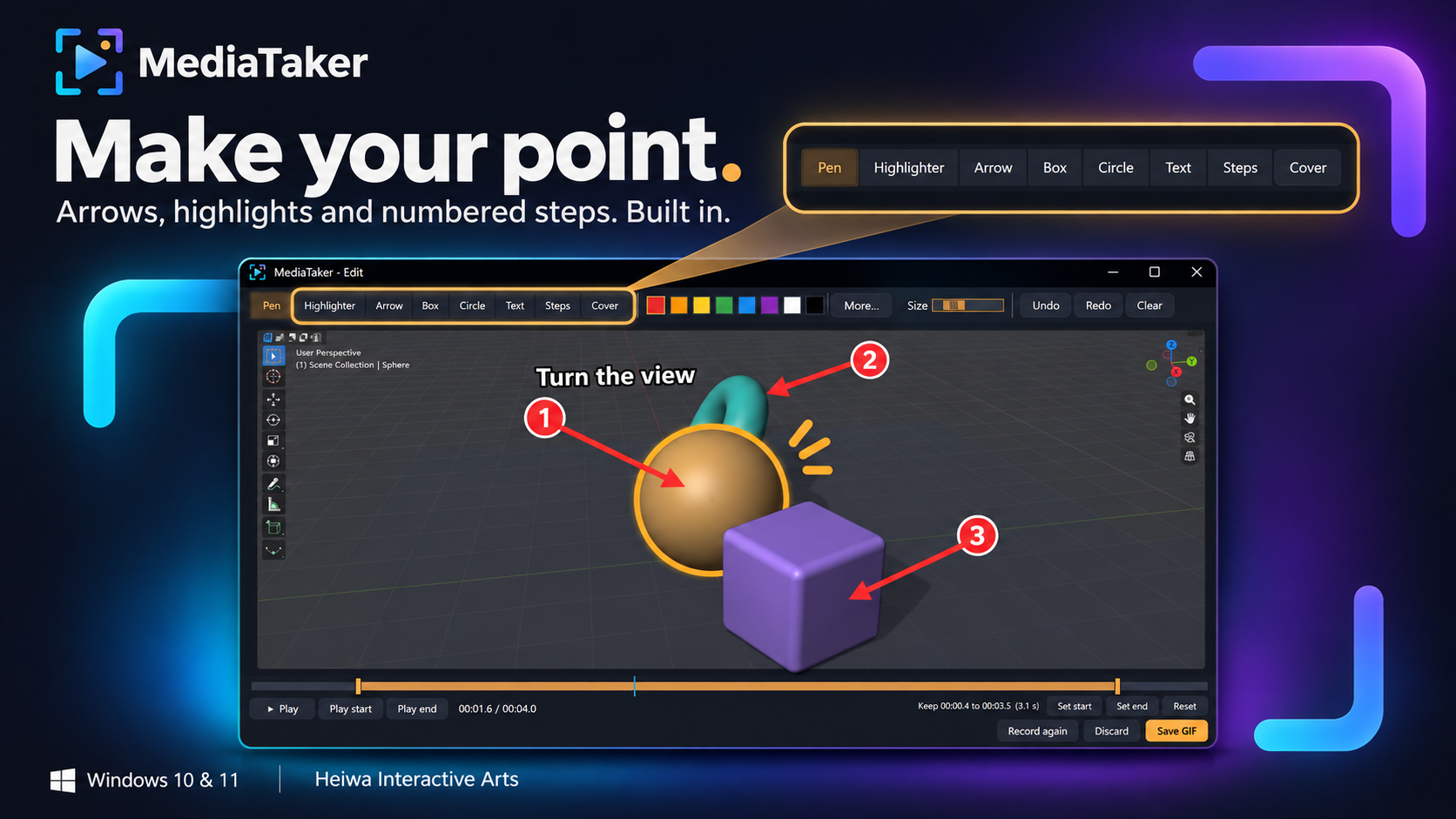
Light on your PC: processor only, lean encoding, nothing uploaded 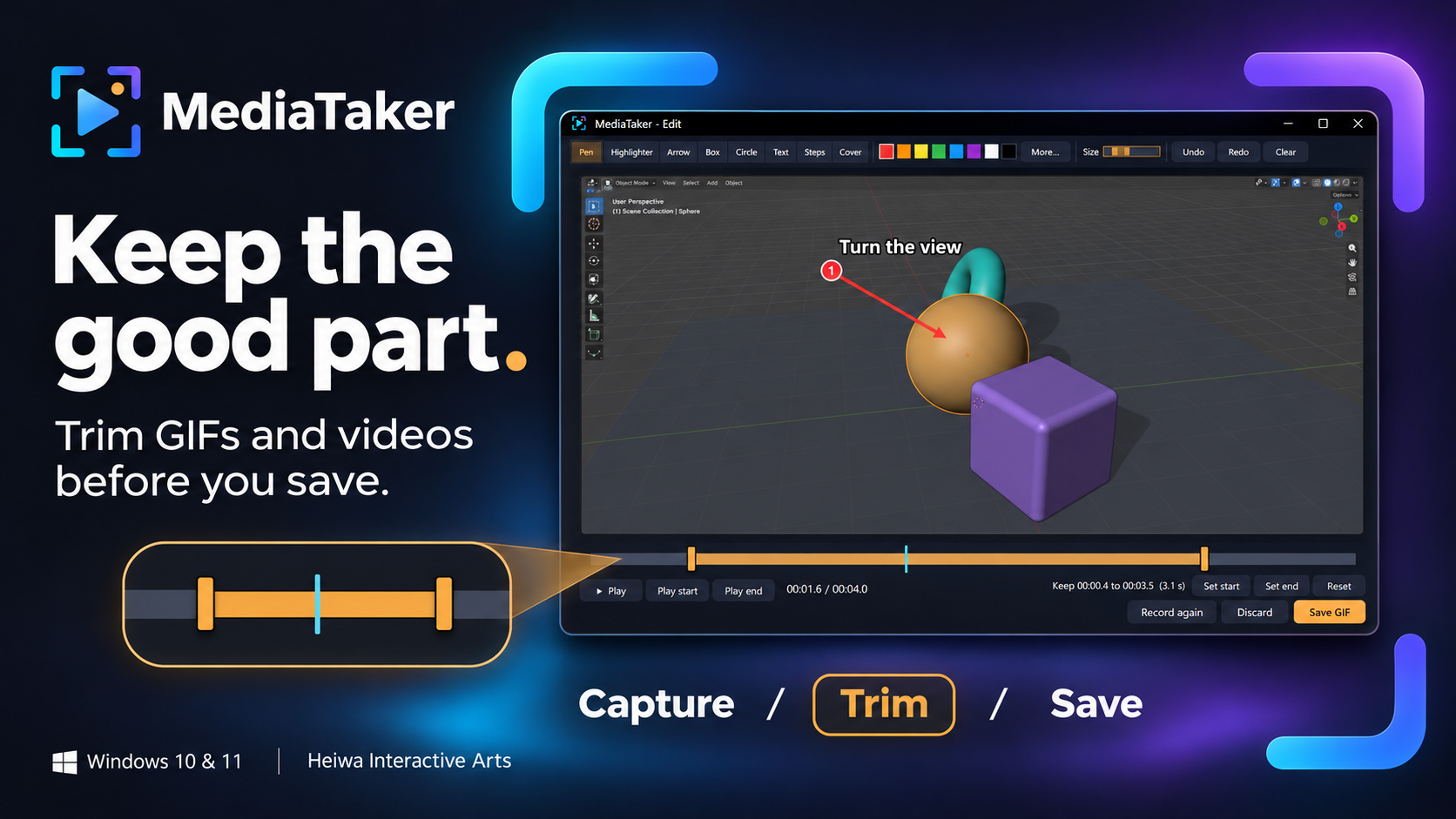
Any program: selecting an area over a painting program and a 3D program
Overview
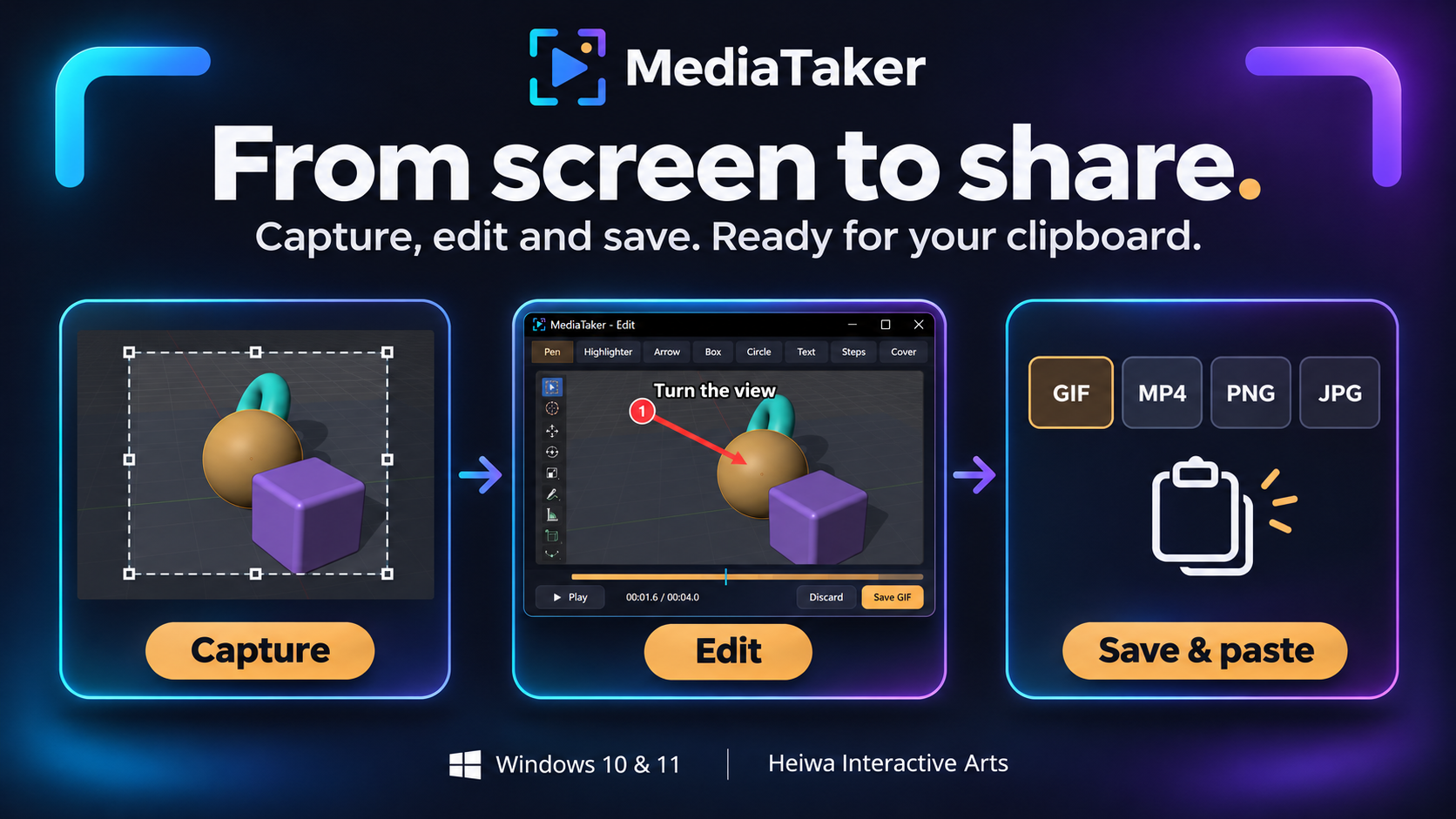
Press Capture, drag over the part of the screen you want, and MediaTaker records it as a looping GIF or an MP4 video. For a still image, pick PNG or JPG instead.
After each capture the editor opens. Draw arrows, boxes, circles, text or numbered steps, highlight things, or cover names and e-mail addresses. For recordings you can cut the start and end, play it back, or throw it away and record again. When you save, the file lands in your folder and on the clipboard, so you can paste it straight into a chat or an e-mail.
MediaTaker records with the processor only, so your graphics card stays available for 3D or game software, and saving runs at low priority.
Your captures stay on your PC. MediaTaker only captures when you press Capture, and only the area you choose. Nothing is uploaded. A capture shows everything inside that area, so check it for private messages or passwords before you share it.
Use it for your work. Personal, commercial, educational and nonprofit use are all allowed. The GIFs, videos and screenshots you make are yours to publish and sell, with no royalties and no credit required. Selling, renting or redistributing MediaTaker itself needs our written permission.
License: MediaTaker License Agreement
Features
- GIF, MP4, PNG and JPG from any part of the screen, on any monitor
- Simple capture: drag an area, click once for the whole screen, or press Esc to cancel
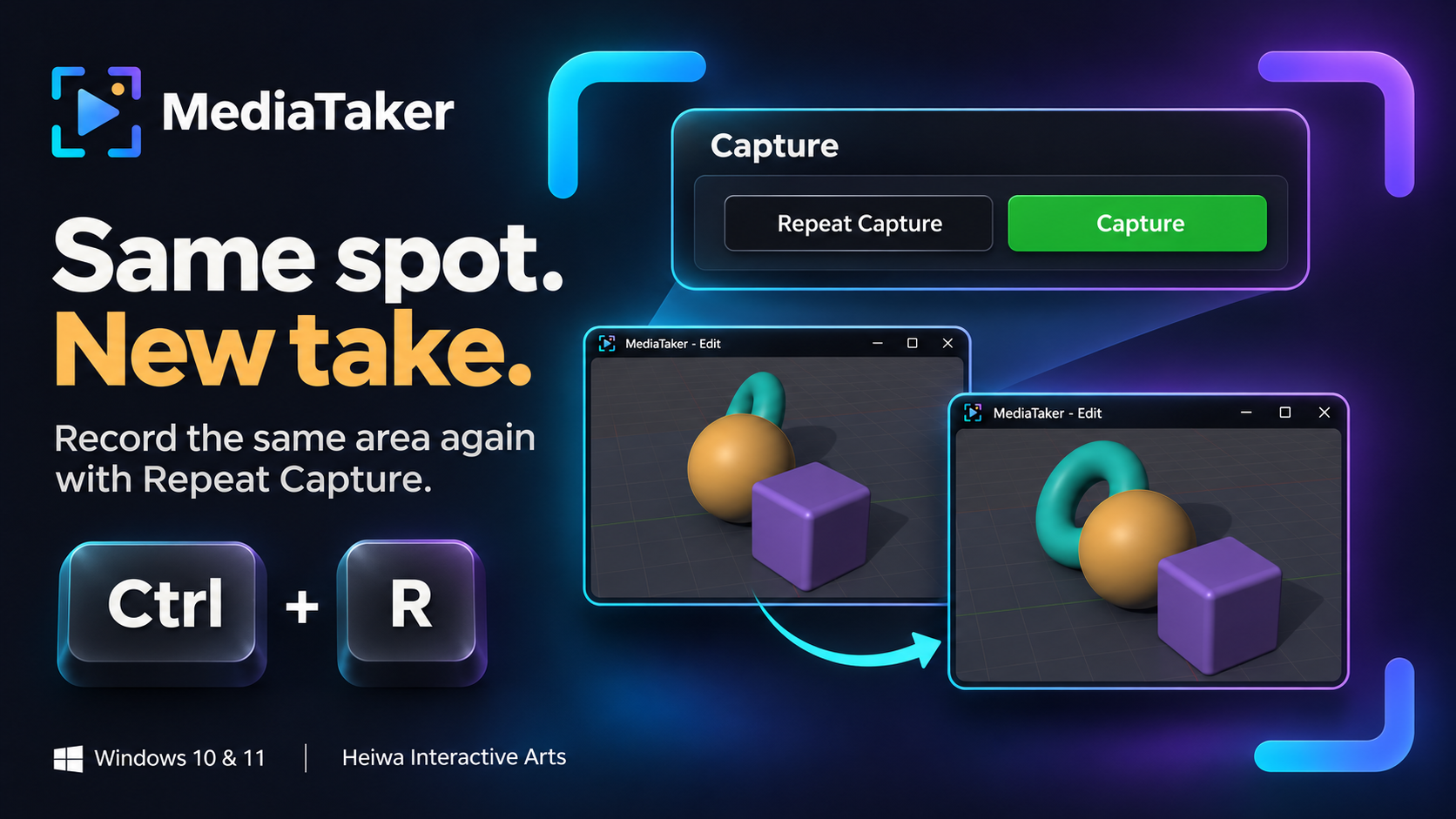
- Repeat Capture records the same area again (Ctrl+R)
- Recording: 1 to 60 fps, any length, a delay before the start, mouse cursor on or off
- Size: from 25% to the original size, or a maximum width
- Editor: pen, highlighter, arrow, box, circle, text, numbered steps and cover boxes, with undo and redo
- Trim and play back recordings, or record again before saving
- Saves to your folder and copies to the clipboard, ready to paste into a chat
- The recording frame and the Stop bar stay out of your recording
- Dark and light themes, and settings that are remembered
- Installer in English and German
Good to know
- Windows only: MediaTaker doesn’t work on Mac at the moment.
Found a problem, or something that doesn't work as described? Please tell us: we read every report and do our best to fix it.
Compatibility
- Windows 10 and 11 (64-bit). There is no Mac or Linux version.
- Works with several monitors and high-DPI displays.
- Also runs on Windows “N” editions.
- On older Windows 10 builds that can’t hide windows from captures, the Stop bar is placed outside the recorded area.
- Records with the processor only; the graphics card isn’t used.
System requirements
- Windows 10 or 11 (64-bit)
- About 150 MB of disk space
- Nothing else to install: FFmpeg and the Microsoft runtime are included
- Installs for your Windows user without administrator rights, or for all users
- FFmpeg runs as a separate program under its own license (GPL-3.0). Its source code: ffmpeg.org/download.html, build scripts: gyan.dev/ffmpeg/builds. All third-party notices are in MediaTaker under Help > About.
Installation
- Download
MediaTaker-1.0.0-Setup.zipfrom My Products and unzip it. - Run
MediaTaker-1.0.0-Setup.exe, choose English or German, accept the license agreement and pick a folder and, if you like, a desktop shortcut. - Start MediaTaker and press the green Capture button (Ctrl+N).
The installer is not code-signed, so Windows SmartScreen may ask for confirmation first: click More info, then Run anyway.
To uninstall, use Windows Settings > Apps. Your settings stay for next time; to remove them too, delete the folder %APPDATA%\MediaTaker.
Versions and changelog
1.0.0Latest
First release.
Reviews
No reviews yet.
Bought MediaTaker? Sign in to write a review.