
Video: the green Search button and the eye in a Content Library pane - a real screen recording in DAZ Studio, no sound 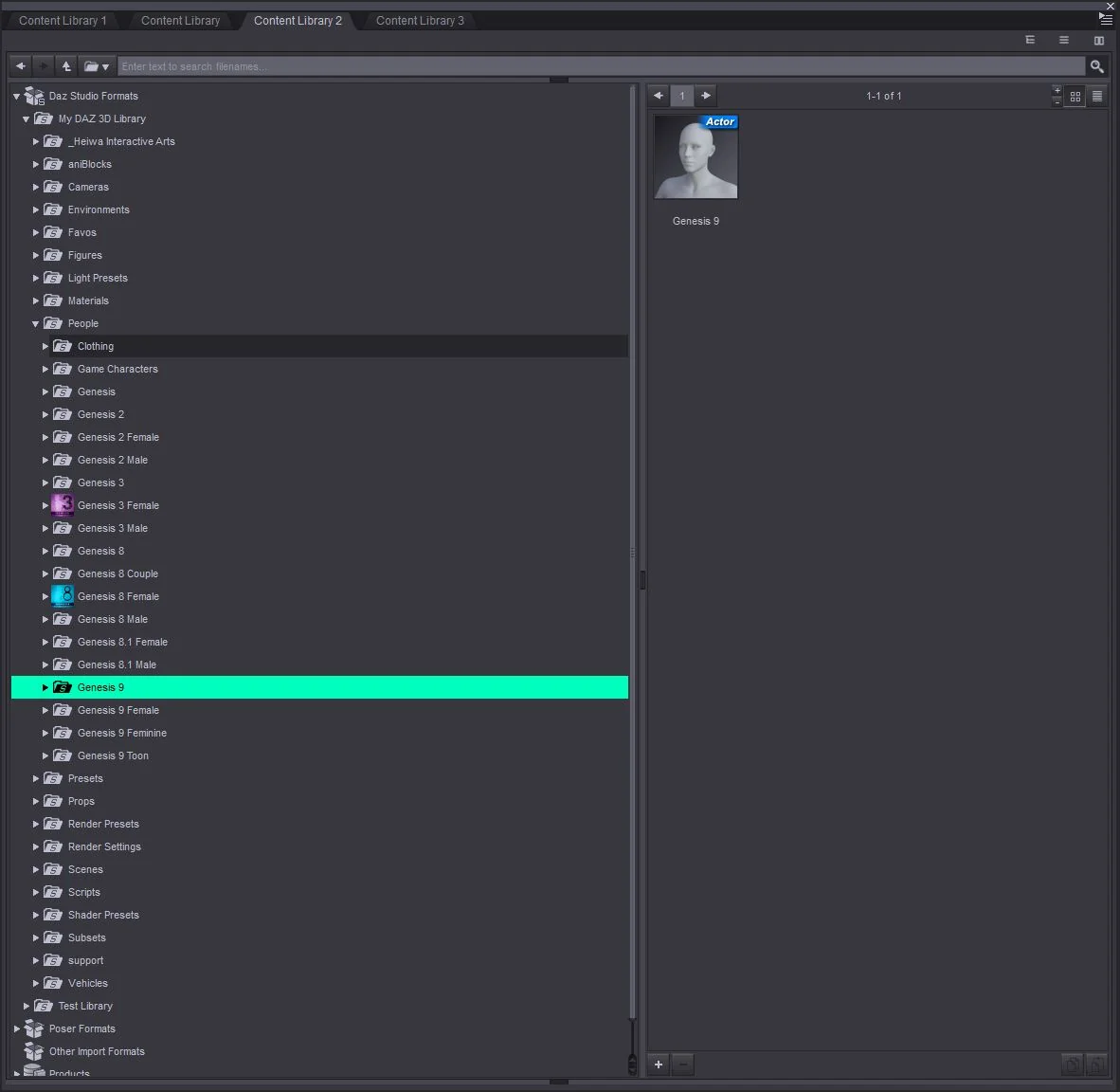
Screenshot: one of the extra Content Library panes 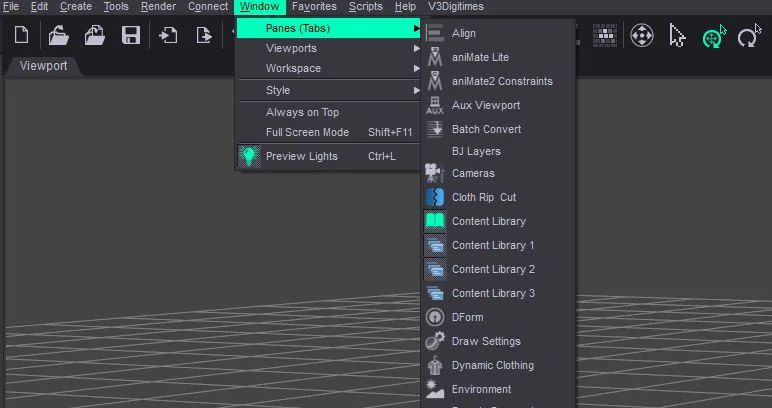
Screenshot: Content Library 1, 2 and 3 in the Window > Panes (Tabs) menu
Overview
Multiple Content Libraries adds three more Content Library panes to DAZ Studio: Content Library 1, 2 and 3. Each one is a genuine additional instance of Daz’s own Content Library pane, not a look-alike: the same toolbar, search, Info / Tips panel, right-click menus and drag and drop. Dock them anywhere, keep each one on a different folder, product or category, and stop clicking back and forth in one library.
New in 1.2: a green Search button in every pane finds files by part of their name in the folder it shows and every folder below it, as you type. Don’t know the name? The eye lists every file of the folder. Favorite tabs can be dragged into order, and every pane has its own Tree / List / Side By Side buttons.
Works in DAZ Studio 4.5 - 4.x (64-bit and 32-bit) and DAZ Studio 6.25 and 6.26, with an installer that puts the right file into every DAZ Studio on your PC. No activation and no internet needed. All 1.x updates are included. The license agreement is in the download (Documentation folder).
DAZ Studio is a trademark of Daz Productions, Inc. Multiple Content Libraries is an independent tool and is not made or endorsed by Daz Productions.
Features
- Three extra Content Library panes: together with Daz’s own, up to four libraries open at the same time
- The real pane: the same toolbar, search, Info / Tips panel, right-click menus and drag and drop as Daz’s Content Library
- Each pane browses on its own: its own folder, selection and search
- Search: the green Search button finds files by part of their name, also in sub-folders; the eye lists every file of a folder
- Favorite tabs: keep a folder as a named, colored bookmark (the + button), drag the tabs into order, and hover a tab to see its folder on disk
- Tree / List / Side By Side buttons on every pane
- Remembers its state per Daz layout: folder, view mode and panel sizes
- Off-screen rescue brings back a floating pane you lost
- Costs nothing until you open it
Good to know
Multiple Content Libraries uses DAZ Studio’s own Content Library pane, so it follows a few of DAZ’s rules:
- Fallback browser: if DAZ Studio can’t provide another Content Library instance, a pane shows the plugin’s own, simpler library browser instead.
- Some pane menu entries act on DAZ’s original pane: View as Tree, View as List and View Side By Side in the menu always change DAZ’s built-in Content Library. Each extra pane has its own Tree / List / Side By Side buttons for that. “Delete Selected Asset(s)” is left out of the extra panes on purpose.
- Search looks at names only: file and folder names, not tags or metadata. Categories and Products can’t be searched.
- Memory: each open pane is a full Content Library and uses memory like one.
- After a crash (or when DAZ Studio is ended in the Task Manager), the panes’ last folders aren’t remembered, because DAZ didn’t save the layout.
- Windows only: Multiple Content Libraries doesn’t work on Mac at the moment.
- DAZ Studio versions: made and tested for today’s DAZ Studio: DAZ Studio 4 and DAZ Studio 6 (6.25 and 6.26). DAZ Studio keeps changing, and a future version may stop Multiple Content Libraries from working until it’s updated. We do our best to keep our tools up to date when we can, but we can’t promise an update for every new DAZ Studio version, and some products may stay at their current version. Your statutory rights are not affected.
Found a problem, or something that doesn't work as described? Please tell us: we read every report and do our best to fix it.
Compatibility
- DAZ Studio 4.5 - 4.x, 64-bit and 32-bit
- DAZ Studio 6.25 and 6.26
- Windows 10 and 11
System requirements
- Windows 10 or 11
- DAZ Studio 4.5 or newer (64-bit or 32-bit), or DAZ Studio 6.25 or 6.26
- Microsoft Visual C++ v14 Redistributable (2015-2026), usually already installed
Installation
- Download
Multiple Content Libraries V1.2.zipfrom My Products and unzip it (right-click > Extract All). - Close DAZ Studio and double-click Install Multiple Content Libraries.bat. It finds every DAZ Studio on your PC (4 and 6, 64-bit and 32-bit) and copies the right file into each one’s plugins folder. If Windows asks for permission, click Yes. If it shows “Windows protected your PC”, click More info, then Run anyway.
- Start DAZ Studio and open the panes: Window > Panes (Tabs) > Content Library 1 (also 2 and 3).
- Drag each pane’s tab where you want it, and use it like the original Content Library.
To install by hand, or for more help, see How To Install.txt in the Documentation folder.
Versions and changelog
1.2Latest
- Search in the folder shown: a green Search button in every Content Library 1 / 2 / 3 pane finds files by part of their name, in the folder and every folder below it
- The eye lists every file of the folder and its sub-folders, without typing
- Double-click or Enter loads a result; right-click to merge, open, show in the library or in Explorer
The full list is in the download (Multiple Content Libraries - Changelog V1.2.txt).
Reviews
No reviews yet.
Bought Multiple Content Libraries? Sign in to write a review.