Sculpt Tool: fix it, bake it, dial it - sculpt directly in DAZ Studio (AI-generated illustration) 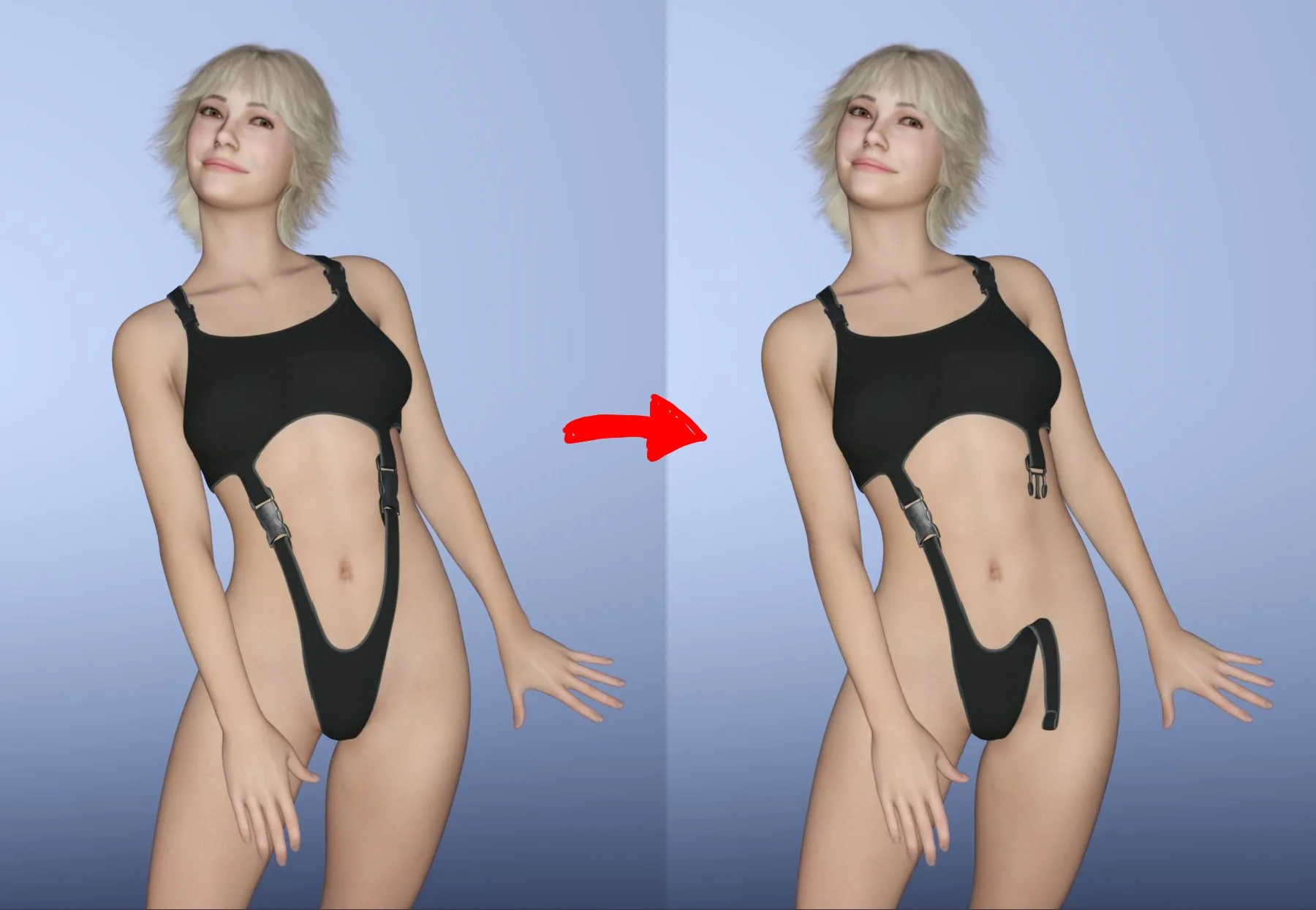
Before and after: a swimsuit adjusted on the figure with Sculpt Tool 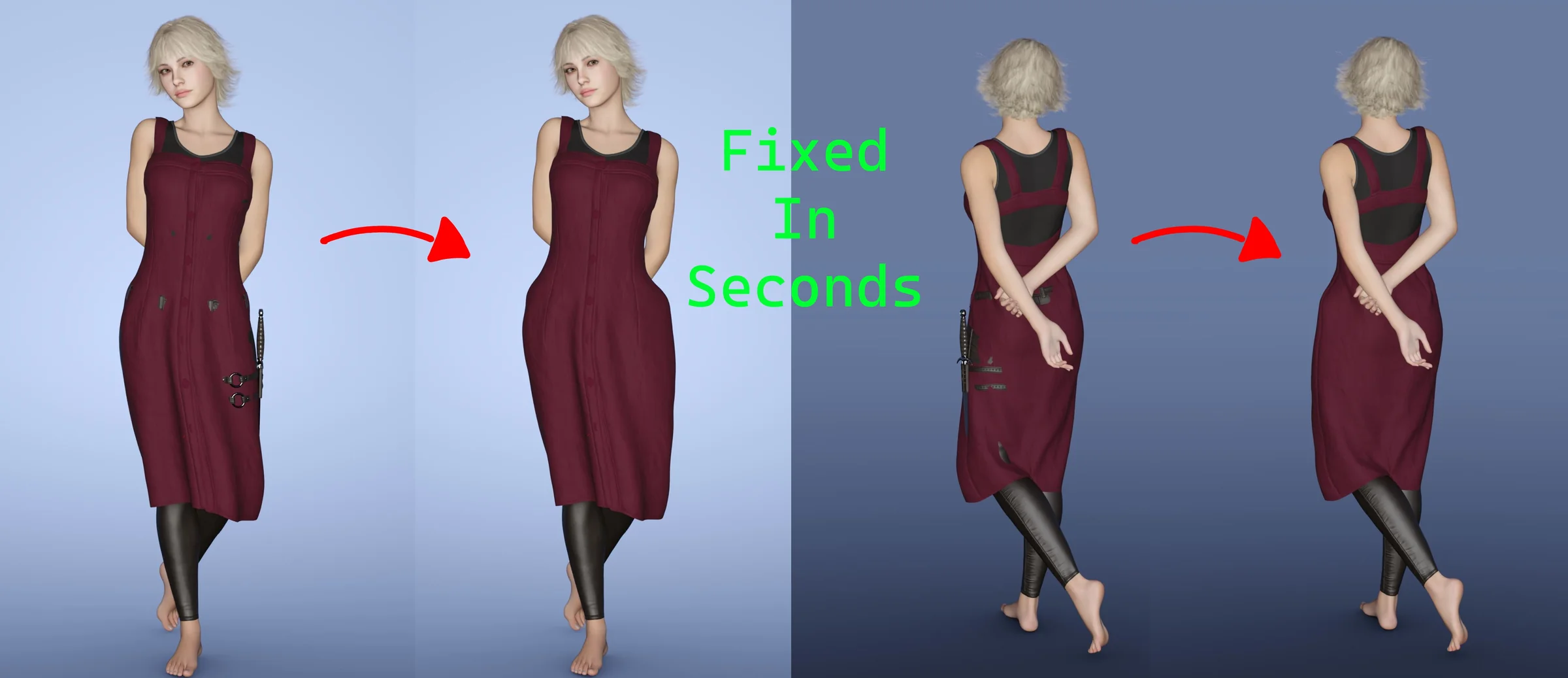
Before and after: a dress poking through the body, fixed in seconds 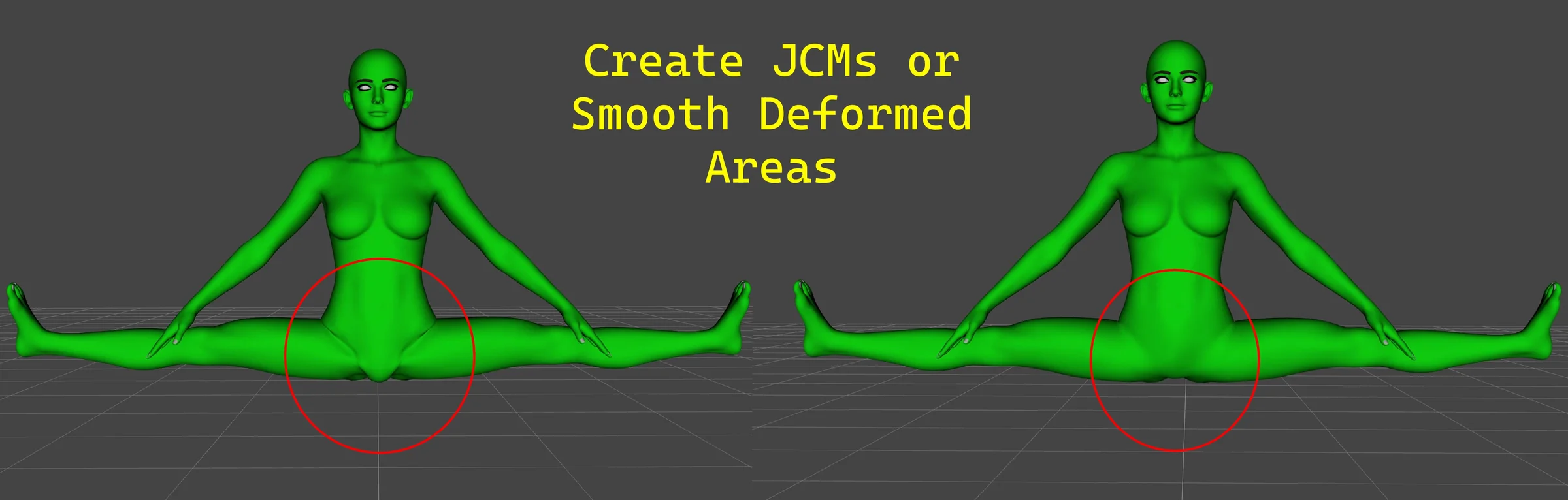
Create JCMs or smooth deformed areas: a figure in a split pose, before and after 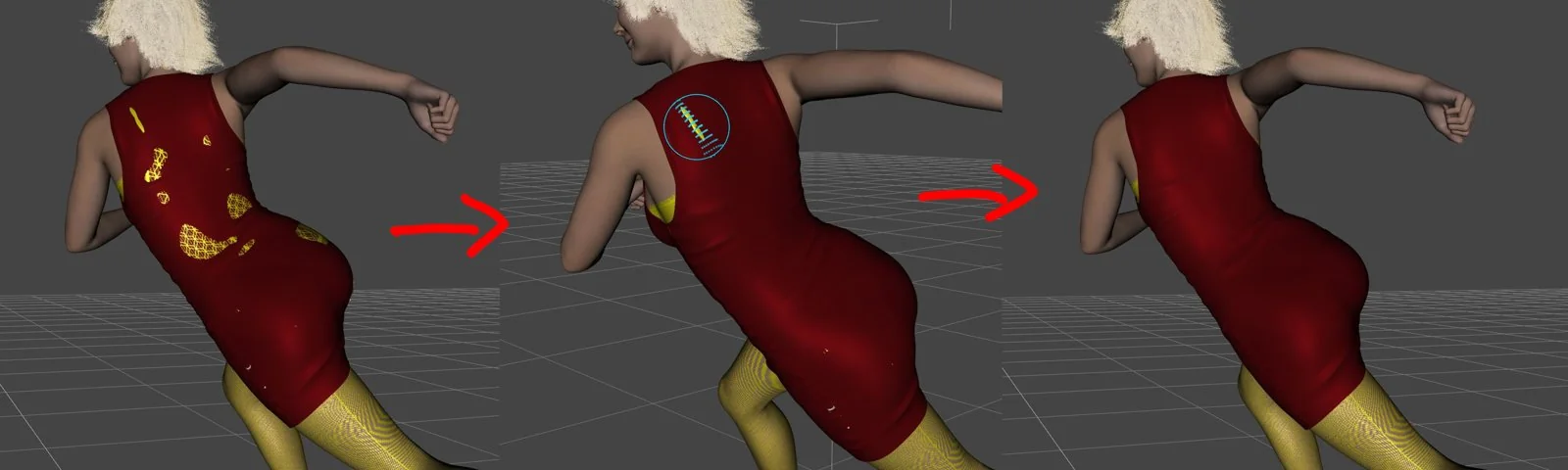
Cloth clipping on a posed figure, fixed step by step 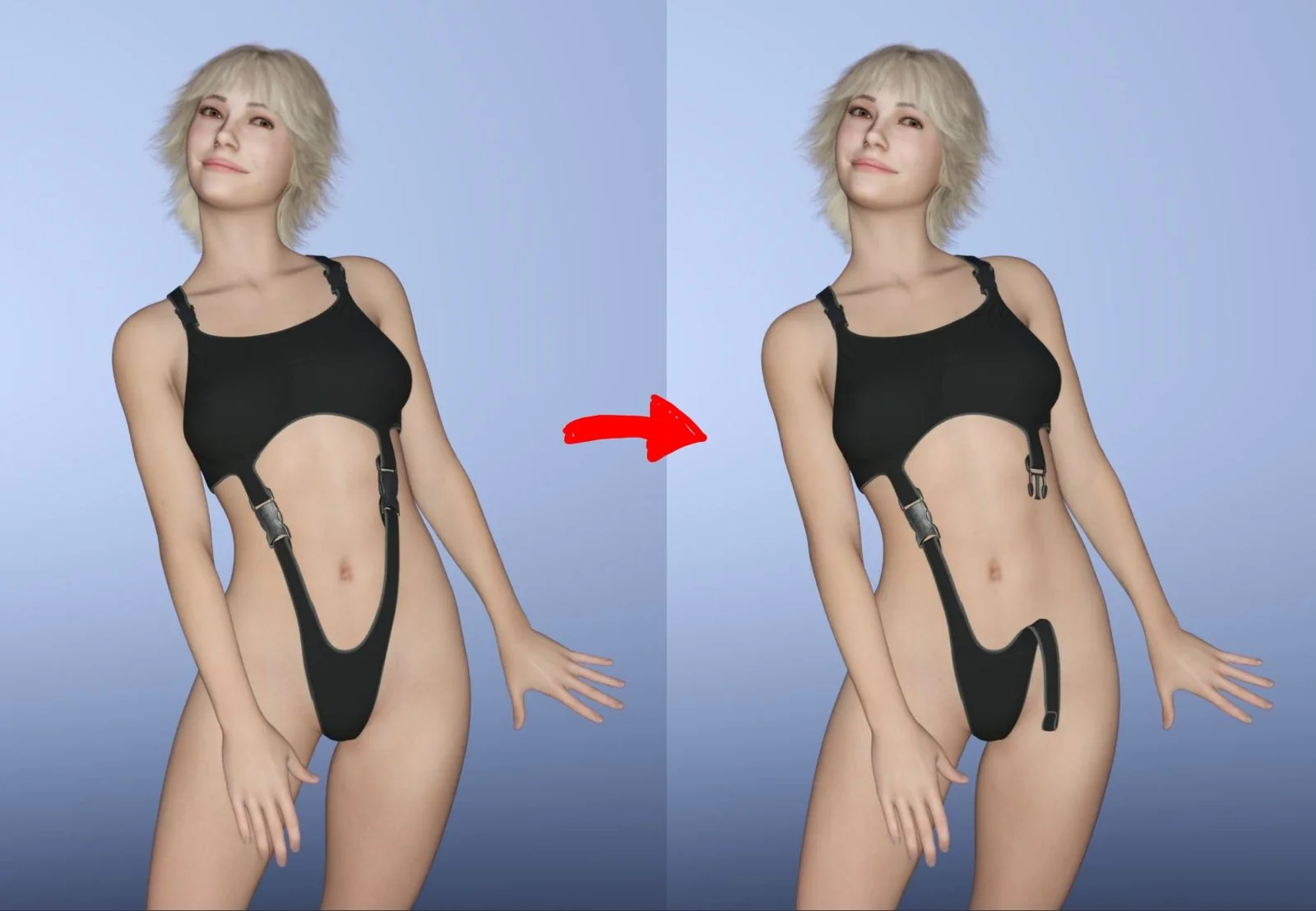
Using Select, the transform handles and smoothing on clothing 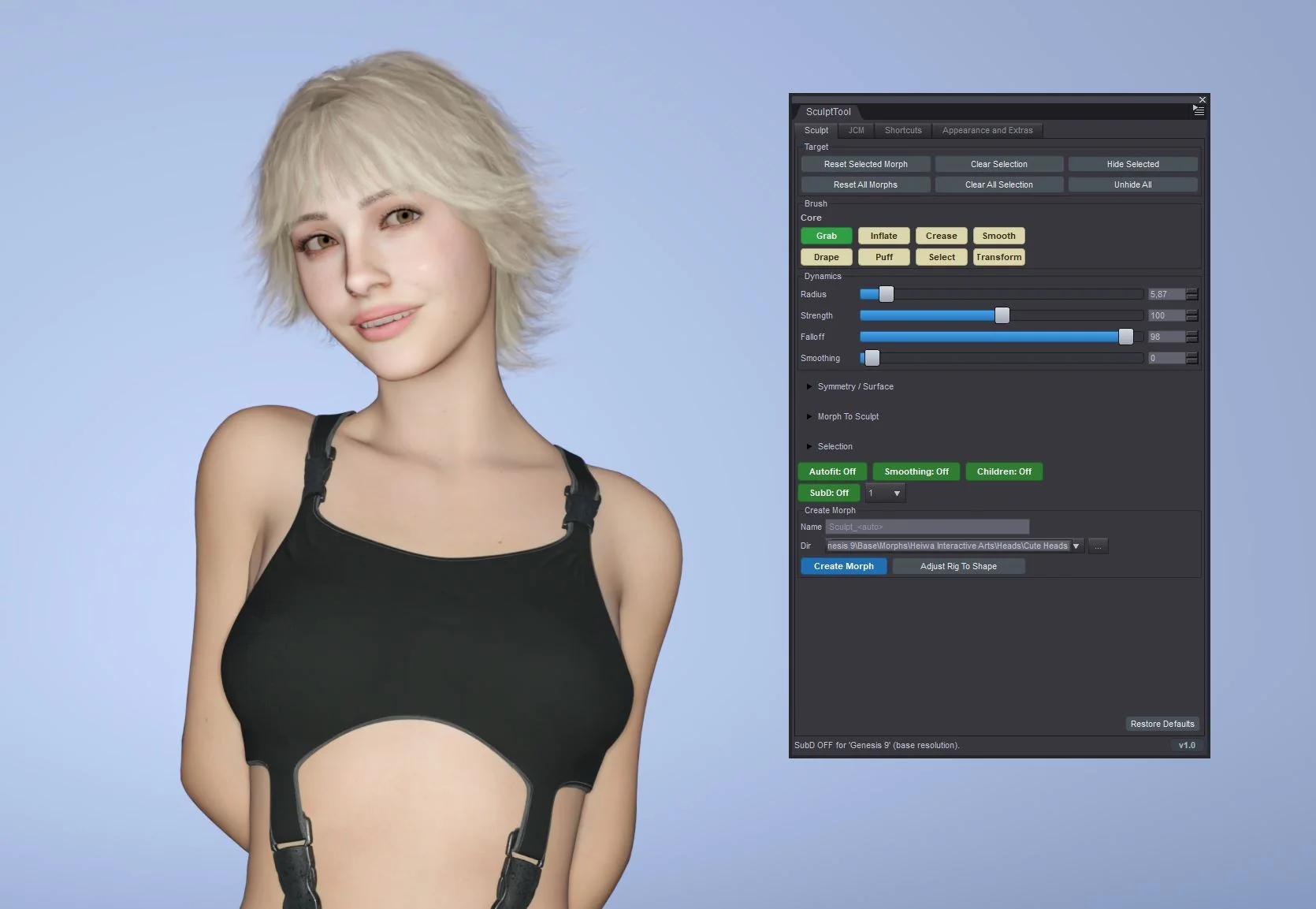
The Sculpt Tool pane next to a figure in DAZ Studio 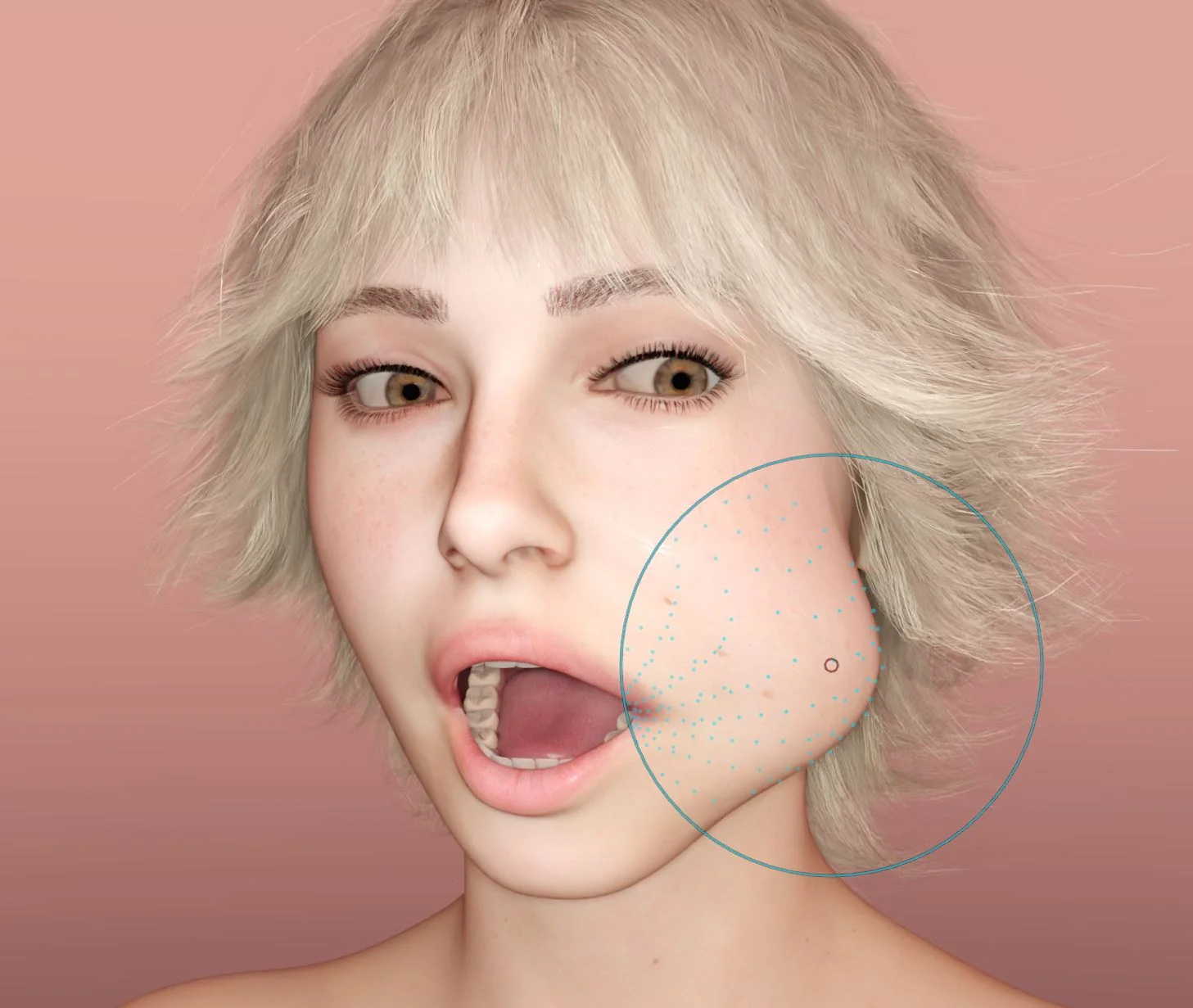
Sculpting a face and mouth with the brush 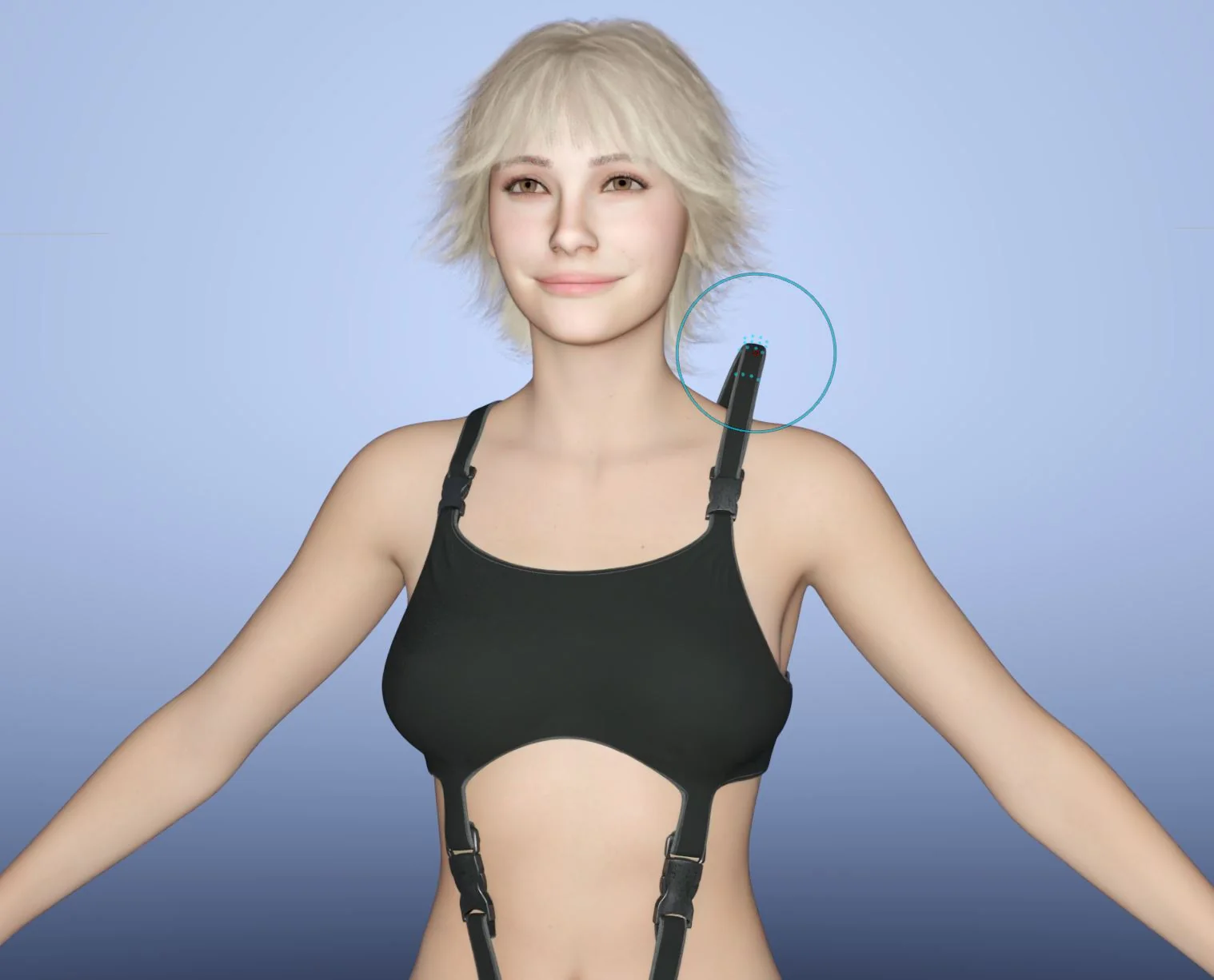
Sculpting a strap on the clothing 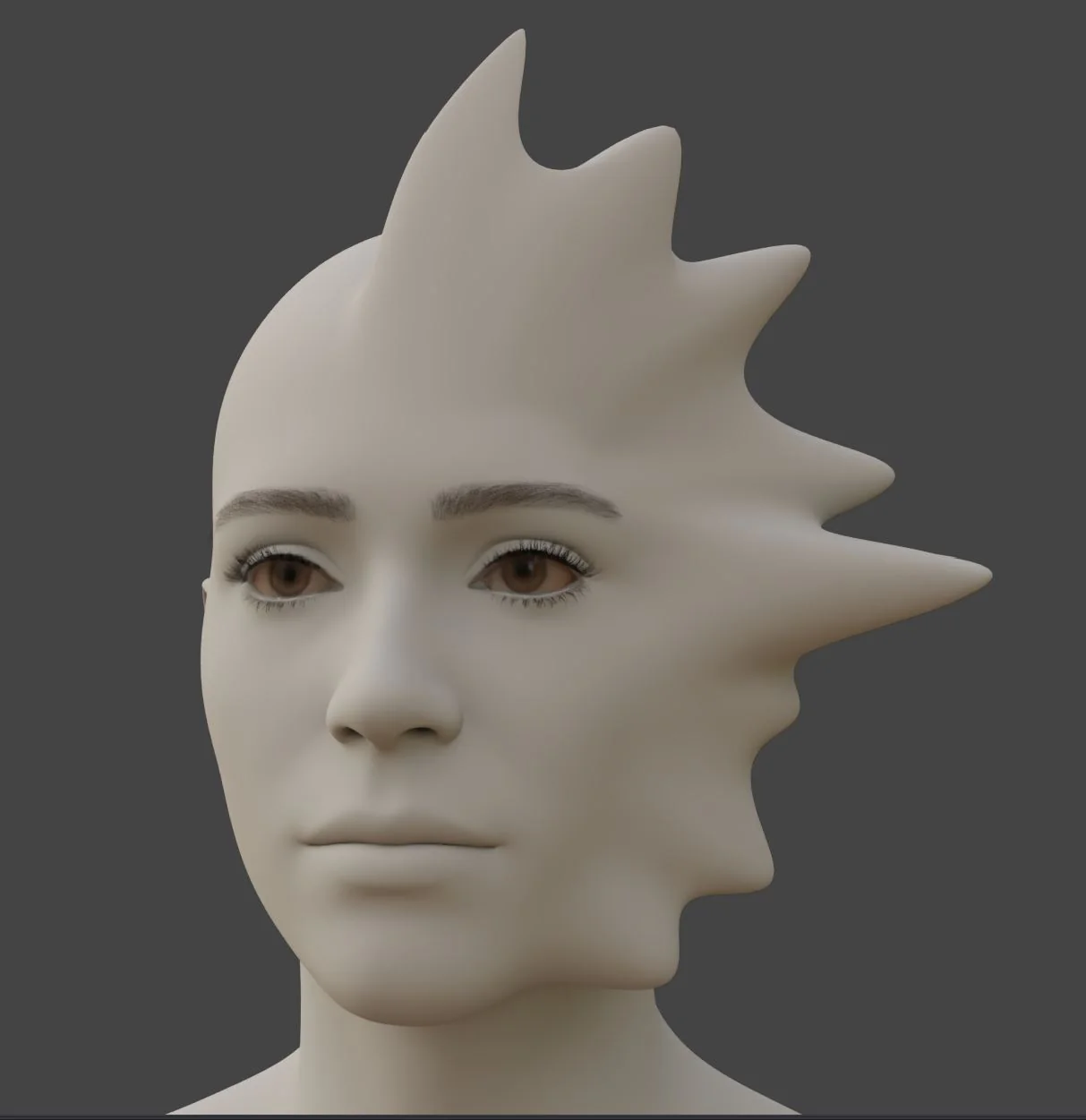
A head sculpted freely with the Grab brush 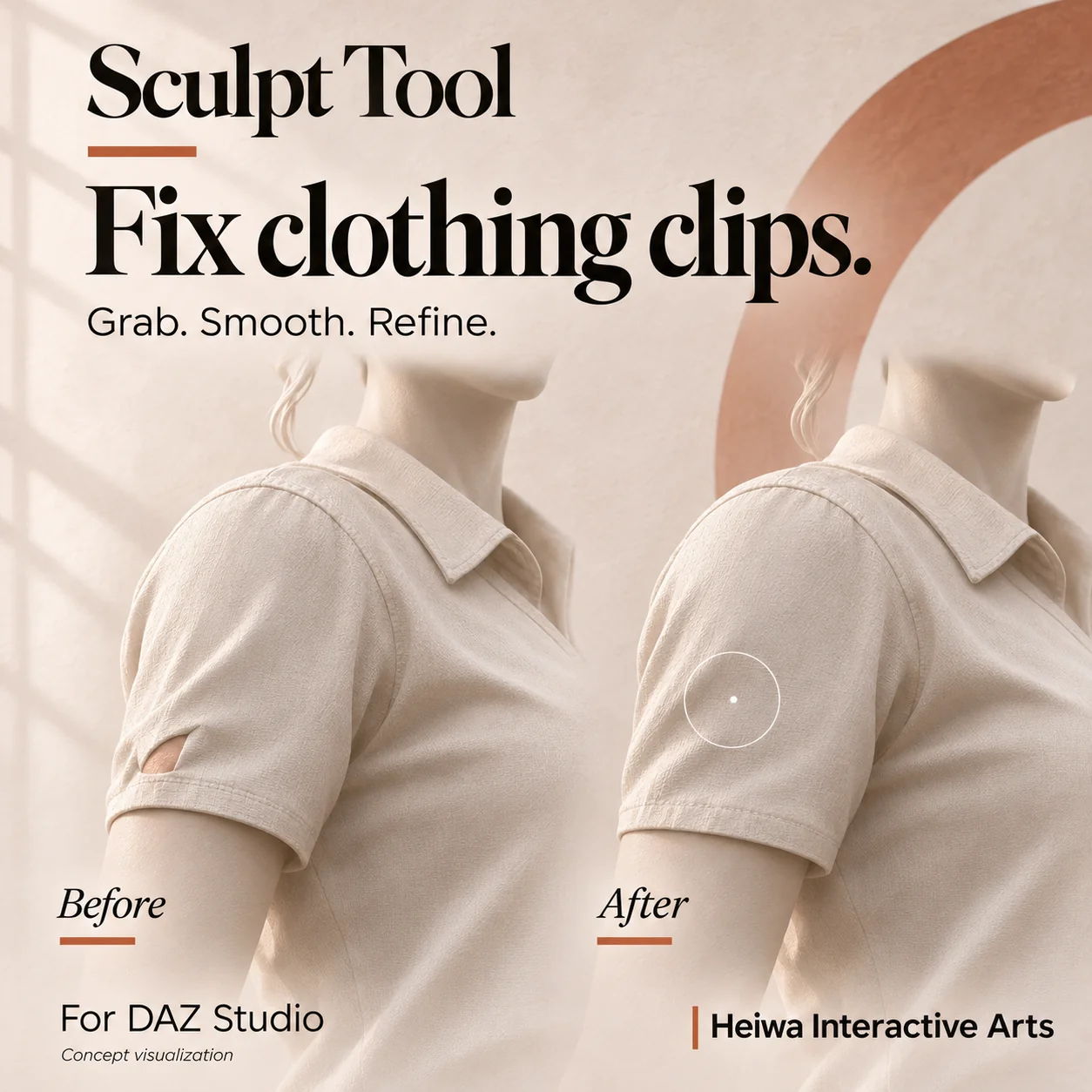
Sculpt Tool: fix clothing clips, before and after (AI-generated illustration) 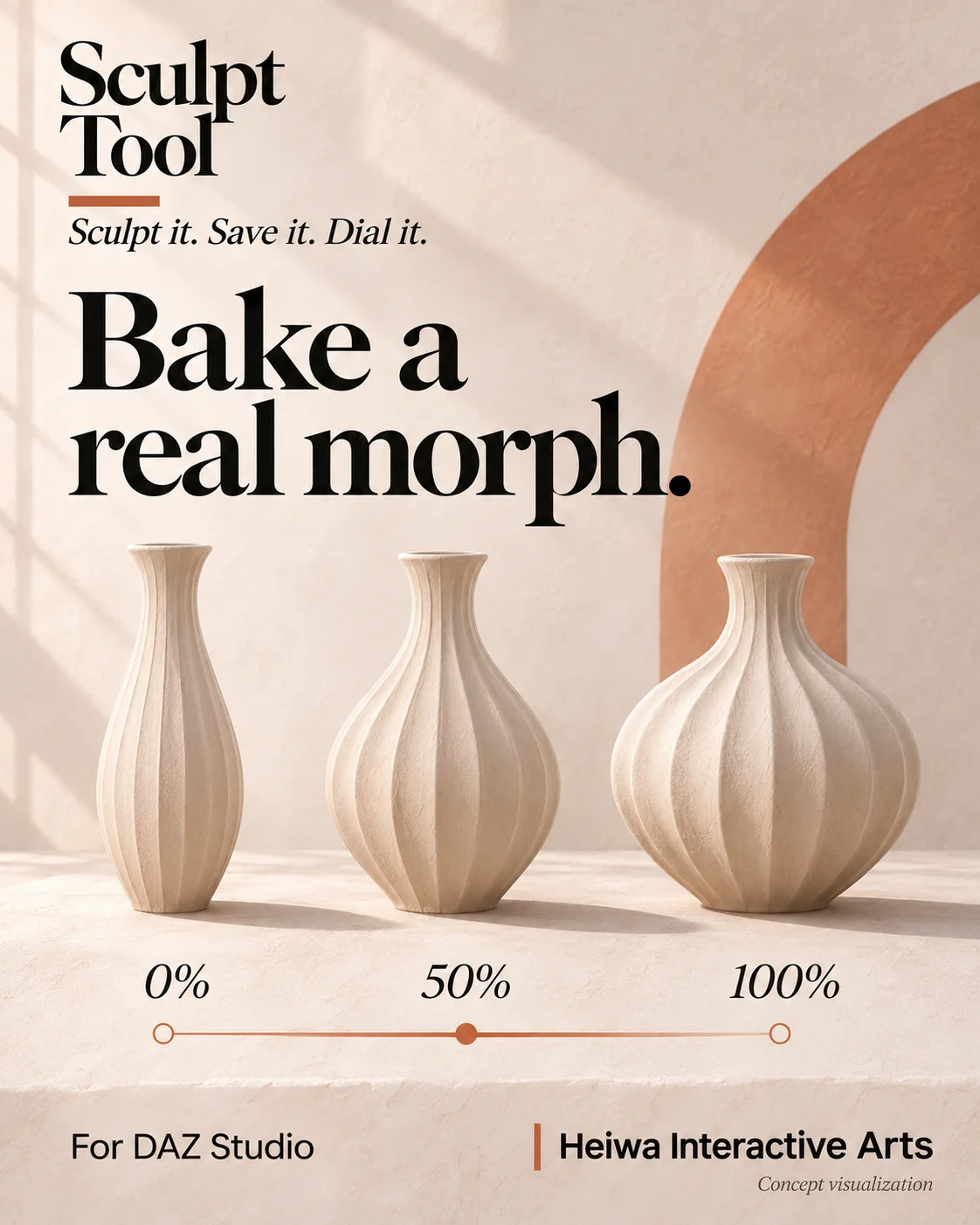
Sculpt Tool: bake a real morph and dial it from 0 to 100 percent (AI-generated illustration)
Overview
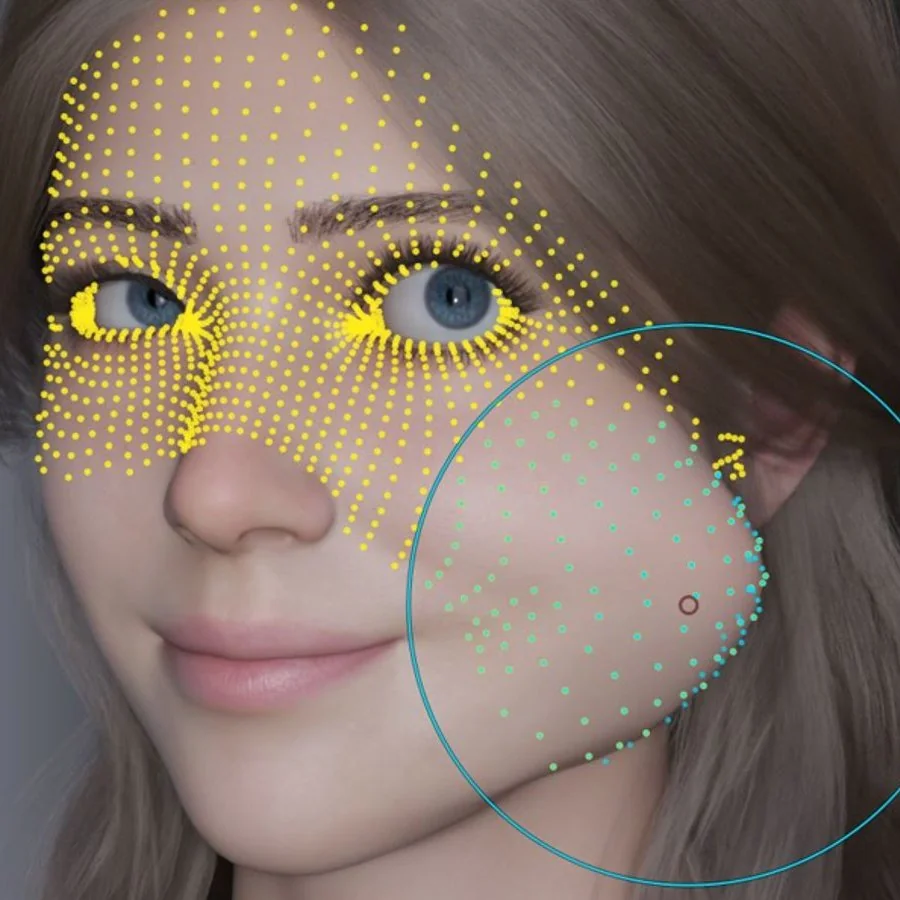
Sculpt Tool fixes clipping right in the DAZ Studio viewport. Where skin pokes through clothing, or one piece of clothing through another, Ctrl+drag over the spot to push the mesh back out, pull it into place or smooth it, and you see the result in real time. You can also adjust the shape of any figure or piece of clothing, smooth out bumps and dents, or add folds. Then bake the result into a real, dial-able DAZ morph.
Works in DAZ Studio 4.5 - 4.x (64-bit and 32-bit) and DAZ Studio 6.25 and newer, with an installer that puts the right file into every DAZ Studio on your PC. No activation and no internet needed. All 1.x updates are included.
License: Sculpt Tool License Agreement
DAZ Studio is a trademark of Daz Productions, Inc. Sculpt Tool is an independent tool and is not made or endorsed by Daz Productions.
Features
- Brushes: Grab, Inflate, Crease, Smooth, Drape (cloth folds) and Puff (hair volume), plus Select and Transform
- Radius, strength and falloff for every brush, several falloff shapes and Brush Offset; the brush circle lies on the surface under the cursor
- One-vertex Grab and Select for precise edits
- Selection: brush, box and lasso selection, Select Linked, Grow / Shrink, Hide Selected and Unhide All
- Transform gizmo with 1 to 8 soft handles to move, turn and scale a selection
- Symmetry and Mirror: sculpt both sides at once, or copy one side to the other with Mirror L→R / R→L
- Create Morph: bake your sculpt into a real, dial-able DAZ morph, with its own group name and slider color
- JCMs: bake pose-driven corrective morphs (Joint Controlled Morphs), with JCM presets you switch on and off
- Morph To Sculpt: press Live, dial any Parameters sliders, and the shape becomes part of your sculpt
- Keep Clothes Smooth While Sculpting with Mesh Smoothing on
- Adjust Rig To Shape and Save Modified Assets right from the pane
- Shortcuts you can change, and a line at the bottom of the pane that tells you what just happened
- Undo: Ctrl+Z works for strokes, bakes and mirrors
- Works side by side with LiveDrape (Sculpt Tool 1.4 or newer)
Good to know
Sculpt Tool works inside DAZ Studio’s own viewport, so a few things depend on what DAZ Studio lets plugins do:
- Strand hair can’t be sculpted. DAZ Studio gives plugins no access to the strands. Polygon hair works.
- Fitted clothing and hair don’t follow the live sculpt. They pick up the morph you create the next time DAZ fits them.
- SubD figures: the brush works on the base mesh. If the targeting ever looks offset, set the figure’s Mesh Resolution to Base.
- Very heavy scenes (SubD plus lots of visible clothing) are limited by DAZ Studio’s own drawing speed.
- Windows only: Sculpt Tool doesn’t work on Mac at the moment.
- DAZ Studio versions: made and tested for today’s DAZ Studio: DAZ Studio 4 and DAZ Studio 6 (6.25 and 6.26). DAZ Studio keeps changing, and a future version may stop Sculpt Tool from working until it’s updated. We do our best to keep our tools up to date when we can, but we can’t promise an update for every new DAZ Studio version, and some products may stay at their current version. Your statutory rights are not affected.
Found a problem, or something that doesn't work as described? Please tell us: we read every report and do our best to fix it.
Compatibility
- DAZ Studio 4.5 - 4.x, 64-bit and 32-bit
- DAZ Studio 6.25 and newer (one file for 6.25 and 6.26 or newer)
- Windows 10 and 11
- Figures, clothing and polygon hair (strand-based hair can’t be sculpted: DAZ Studio doesn’t give plugins access to it)
- Works side by side with LiveDrape
System requirements
- Windows 10 or 11
- DAZ Studio 4.5 or newer (64-bit or 32-bit), or DAZ Studio 6.25 or newer
- Microsoft Visual C++ 2015-2022 Redistributable, usually already installed
Installation
- Download
SculptTool V1.4.zipfrom My Products and unzip it (right-click > Extract All). - Close DAZ Studio and double-click Install Sculpt Tool.bat. It finds every DAZ Studio on your PC (4 and 6, 64-bit and 32-bit) and copies the right file into each one’s plugins folder. If Windows asks for permission, click Yes. If it shows “Windows protected your PC”, click More info, then Run anyway.
- Start DAZ Studio. The SculptTool icon is in the main toolbar, and the settings pane is under Window > Panes (Tabs) > SculptTool.
- Select a figure, activate the tool and Ctrl+drag in the viewport. Use Create Morph on the Sculpt tab to bake your edit.
To install by hand, or for more help, see How To Install.txt in the Documentation folder. Updating: install the new version the same way; your settings are kept.
Versions and changelog
1.4Latest
- The brush circle lies on the surface under the cursor (Circle Follows Surface)
- One-vertex Grab and Select
- Keep Clothes Smooth While Sculpting
- DAZ Studio 6.26 support and a 32-bit build for DAZ Studio 4
- Keyboard shortcuts act in the viewport under the cursor
- Mirror no longer leaves spikes where points have no mirror partner
The full list is in the download (SculptTool - Changelog V1.4.txt).
Reviews
No reviews yet.
Bought Sculpt Tool? Sign in to write a review.