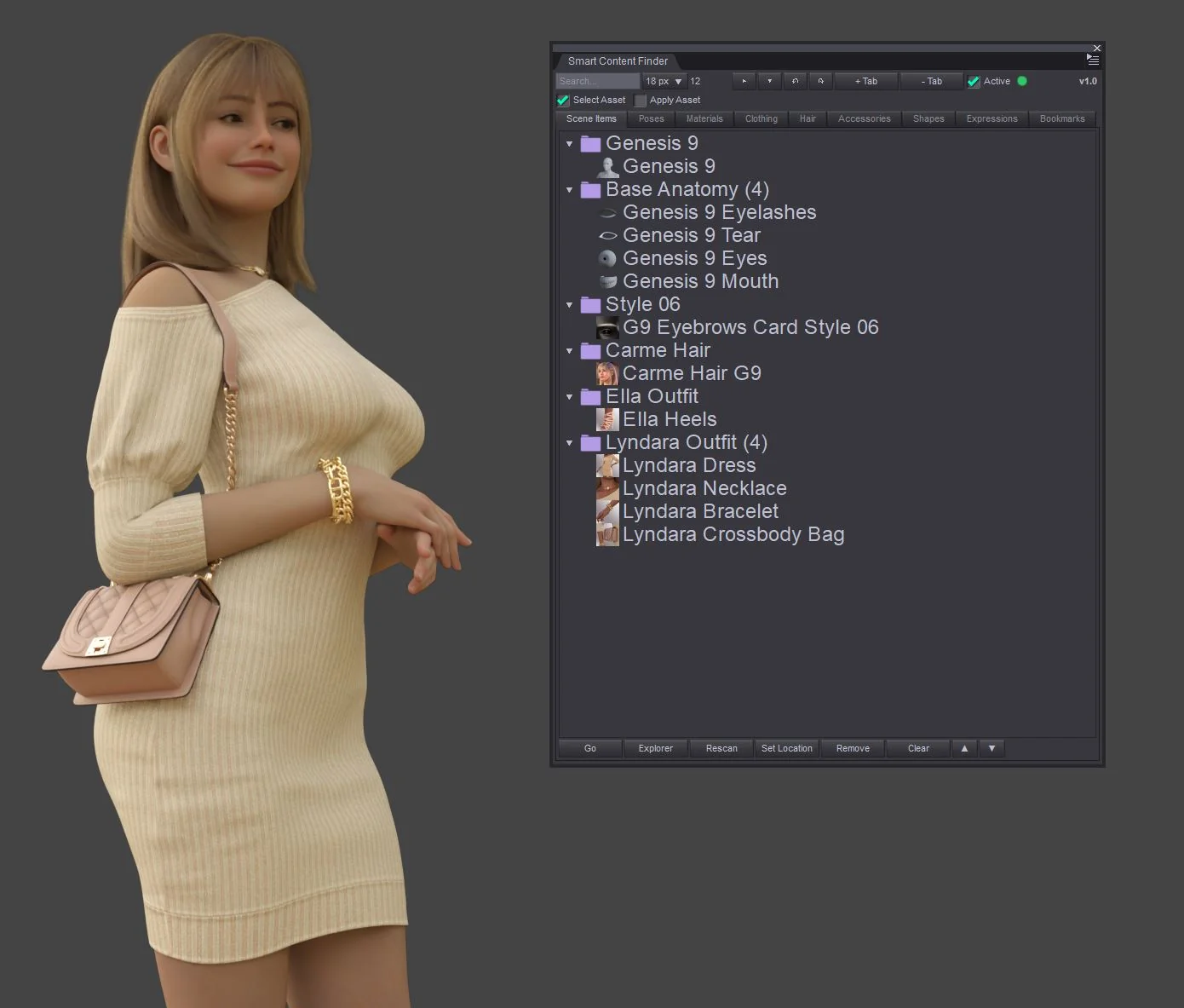
The Smart Content Finder pane next to a figure in DAZ Studio 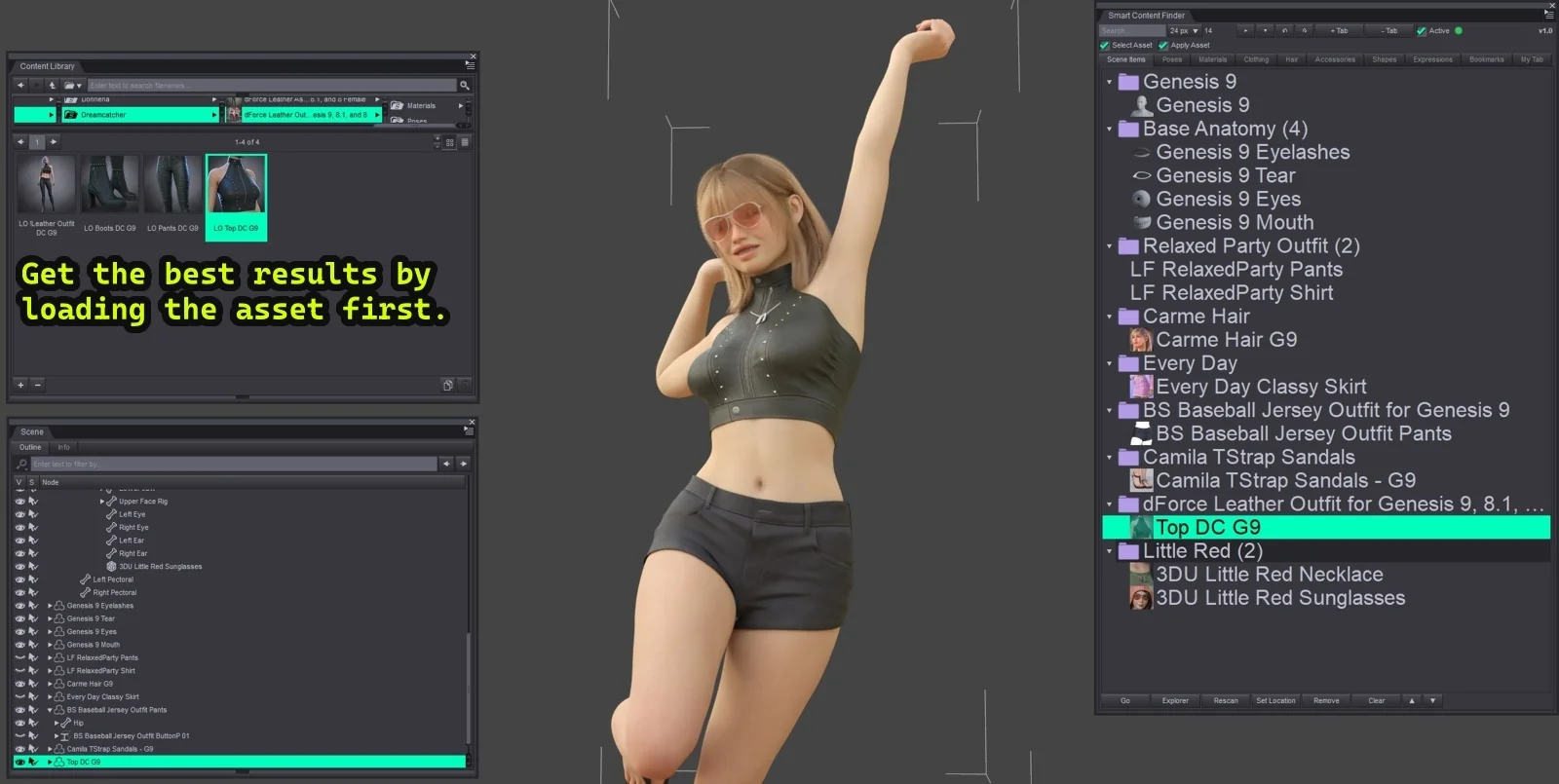
Get the best results by loading the asset first 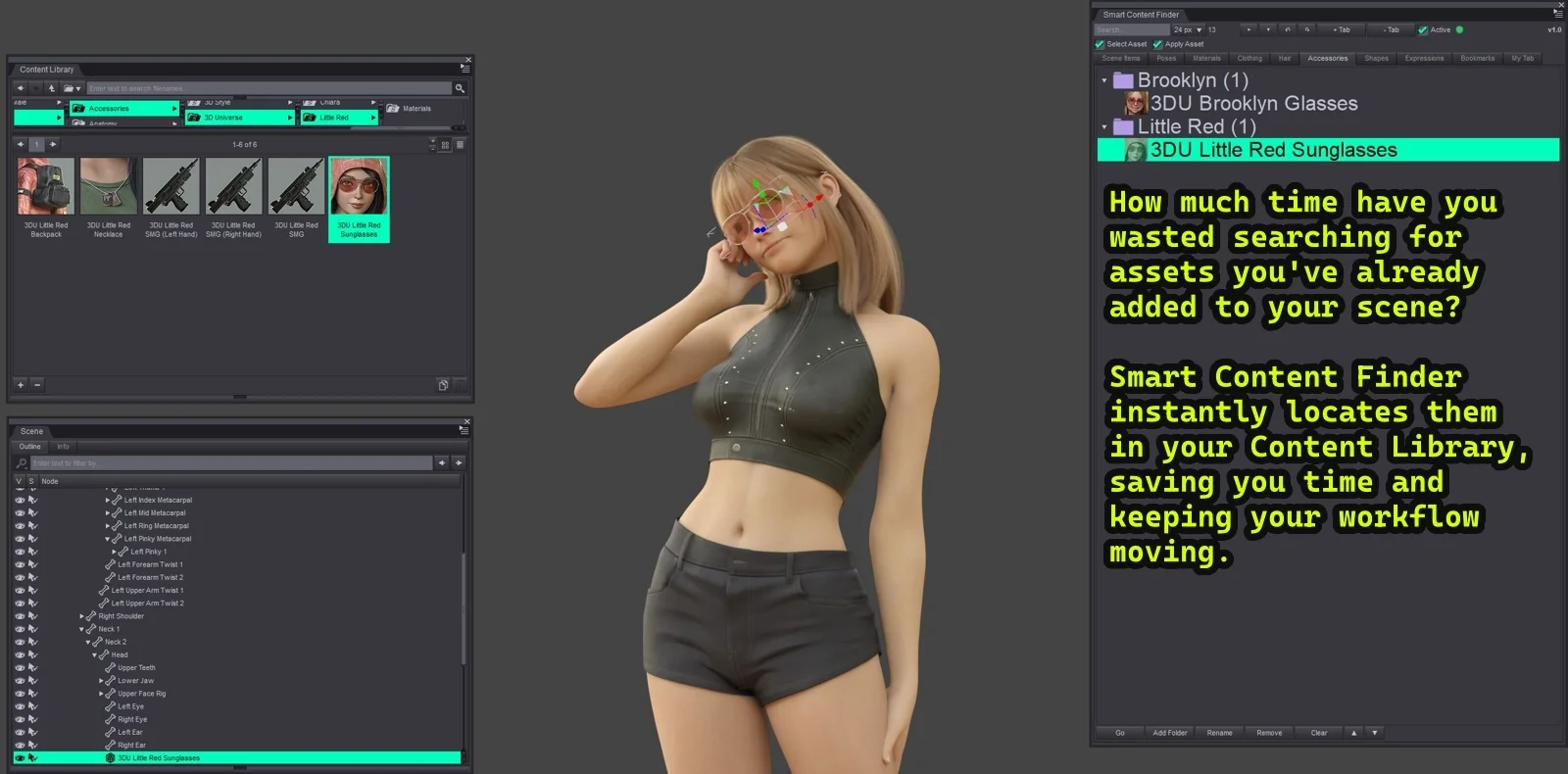
Glasses found in the Content Library in one click 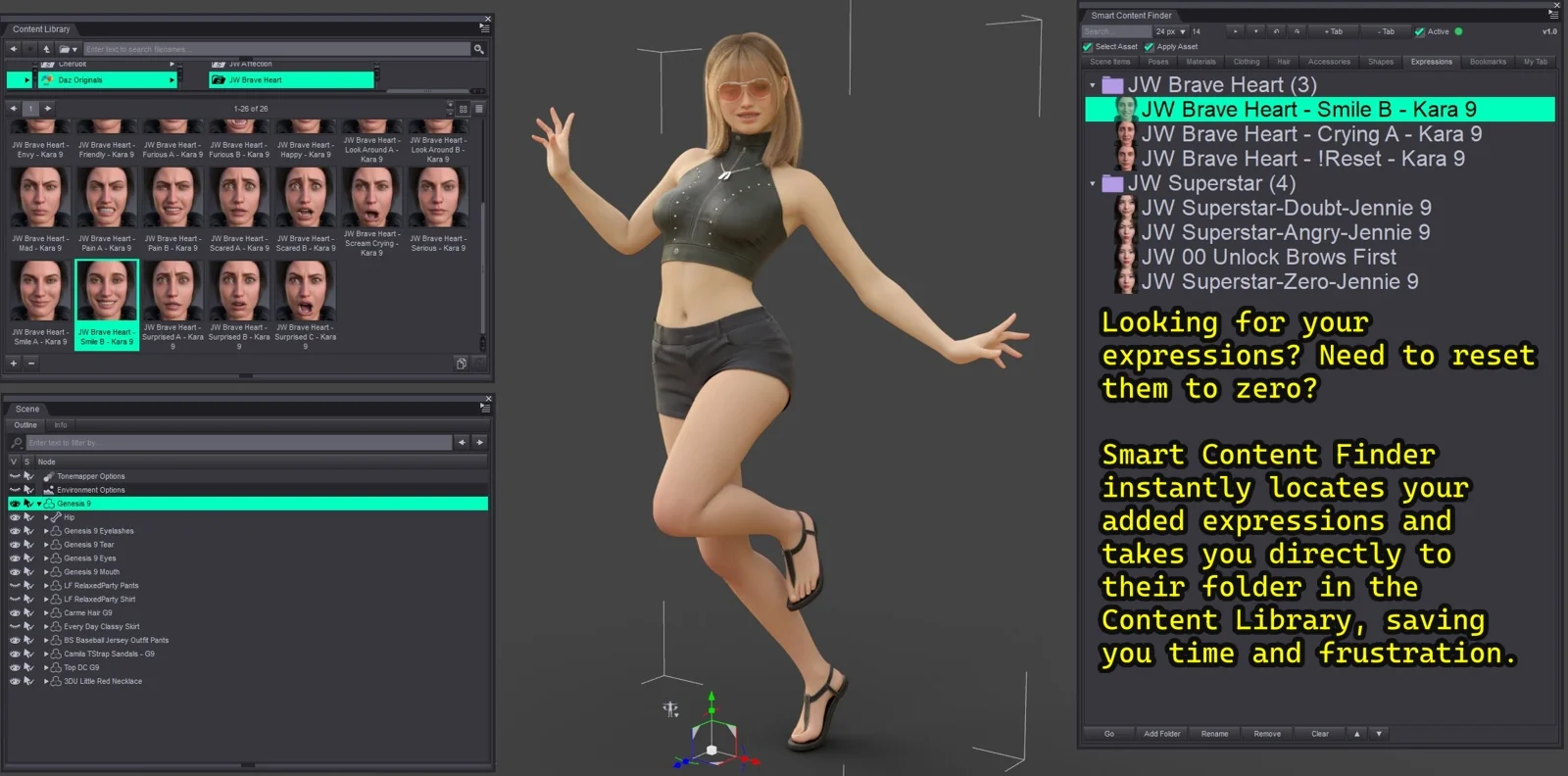
Find the expressions you added and their folder in the Content Library 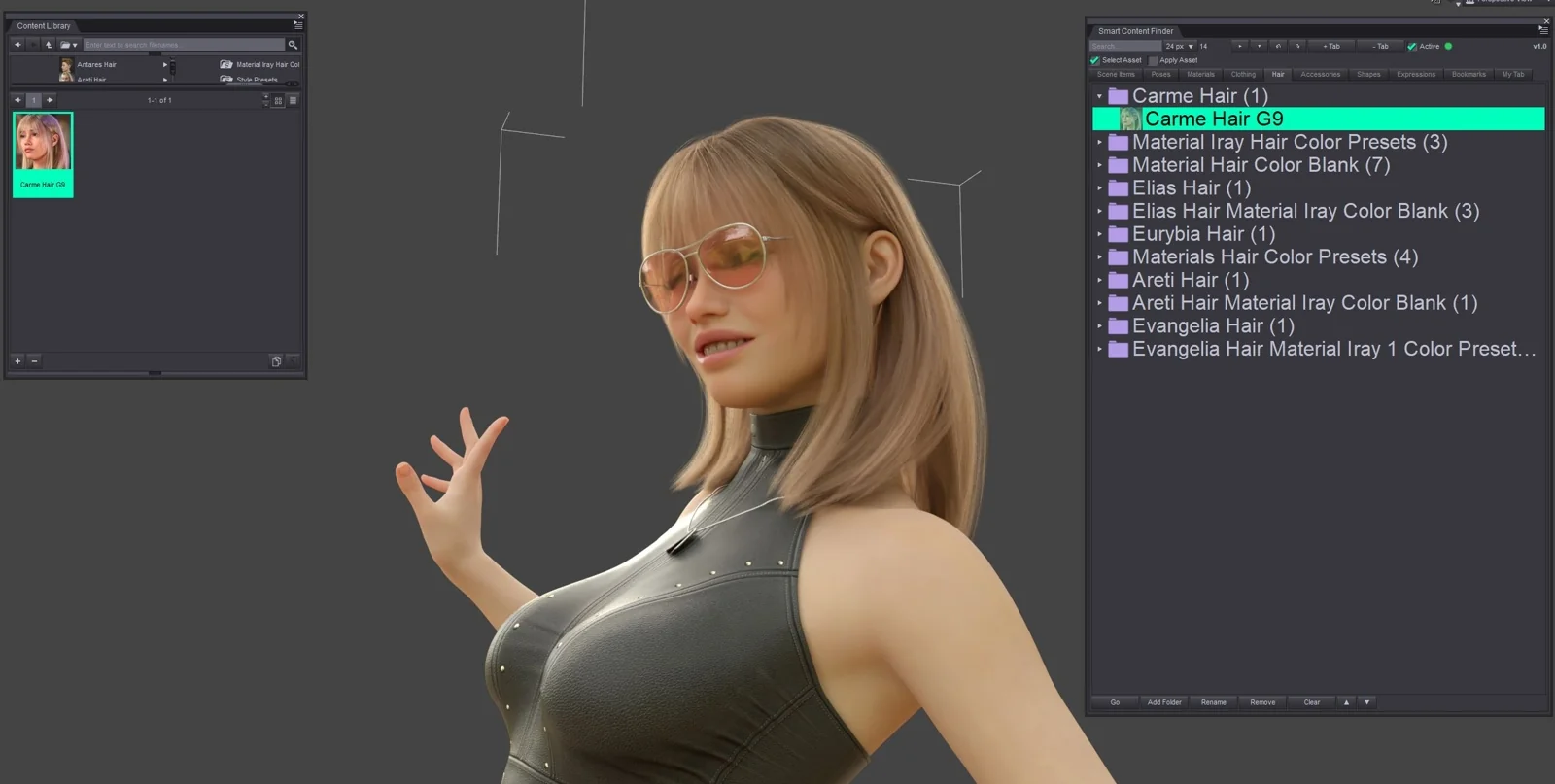
Find the hair you added in the Content Library 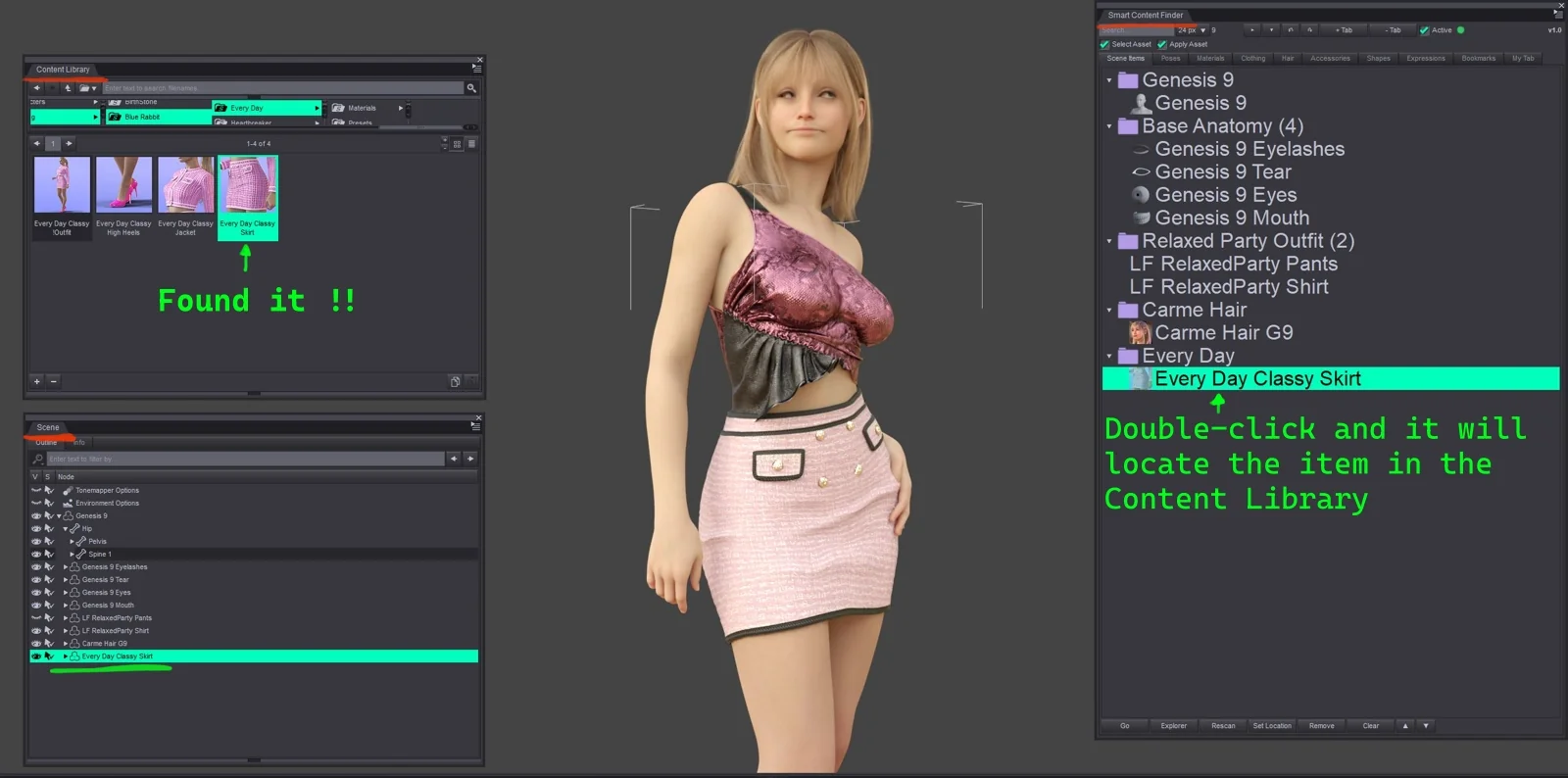
Double-click an item and it is located in the Content Library 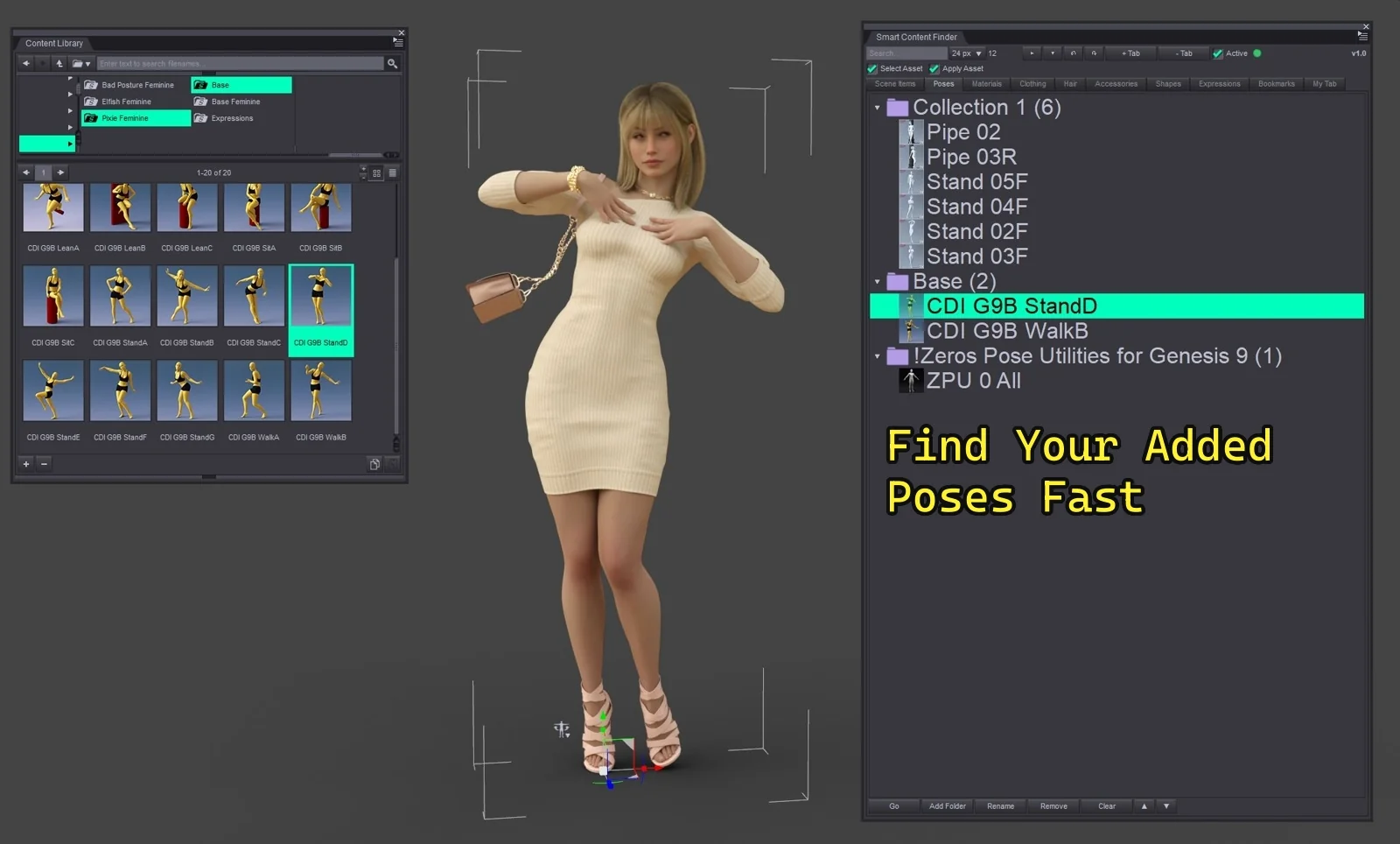
The Poses tab: find added poses fast 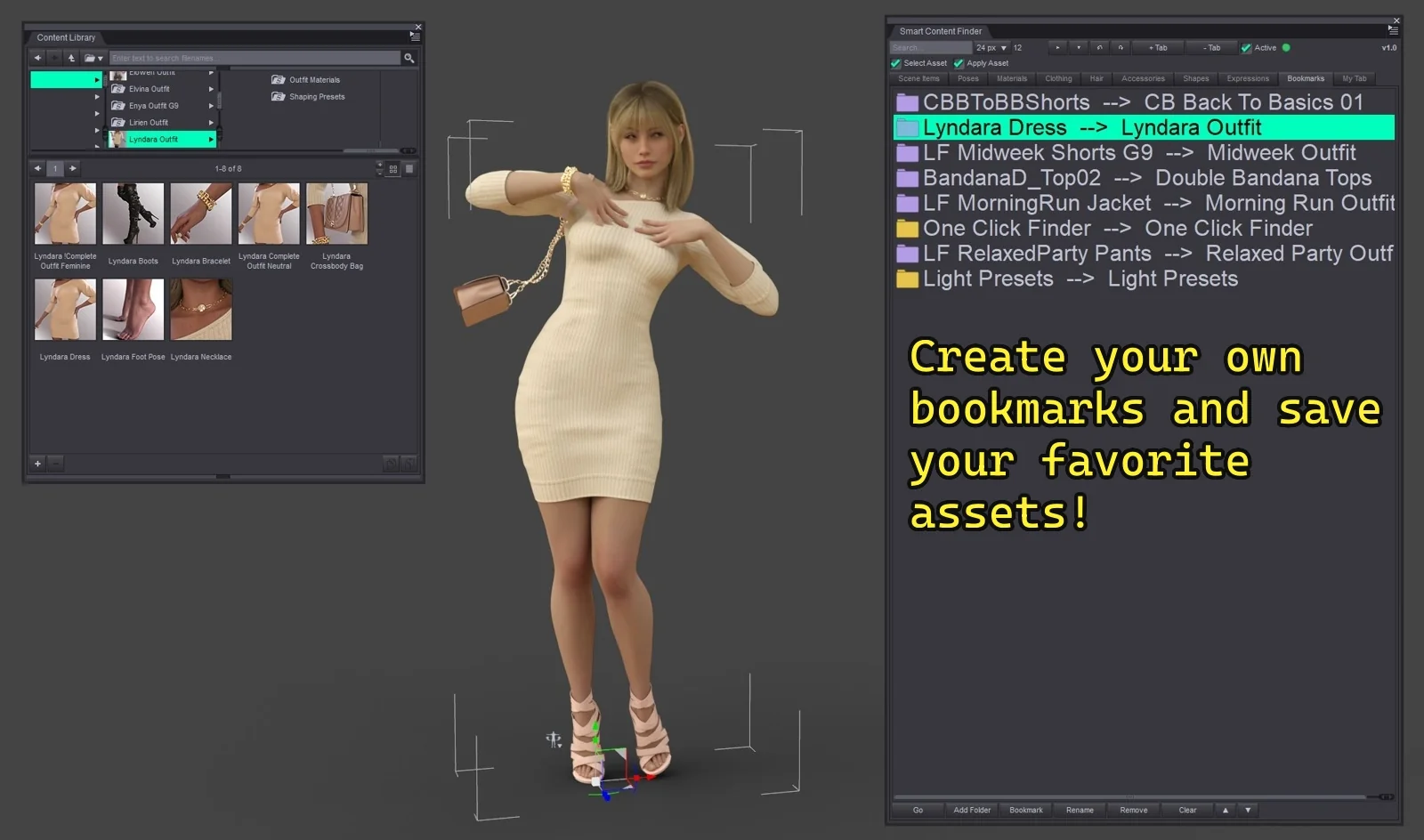
Create your own bookmarks and save your favorite assets 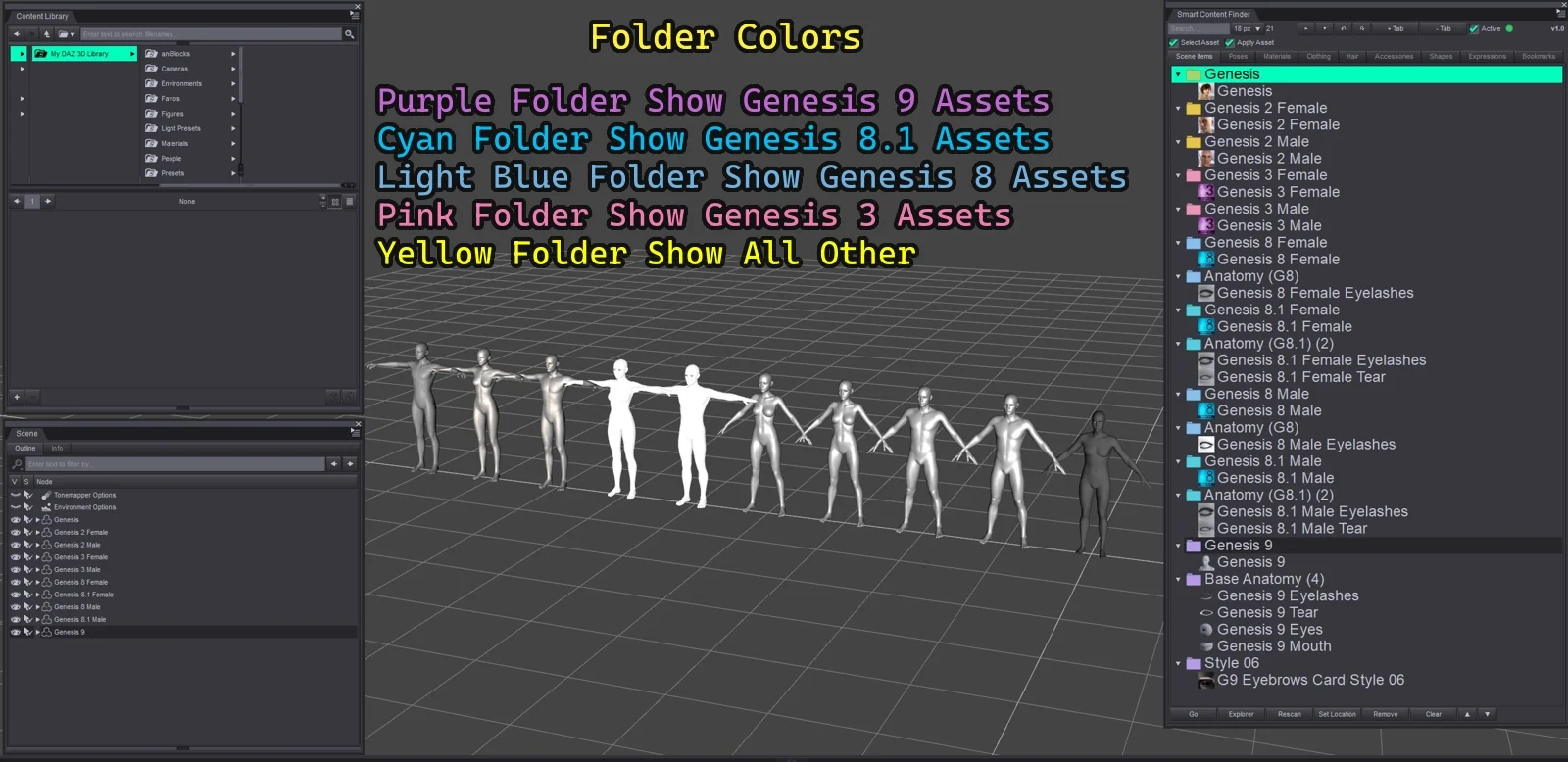
Folder colors show Genesis 9, 8 and 3 assets at a glance 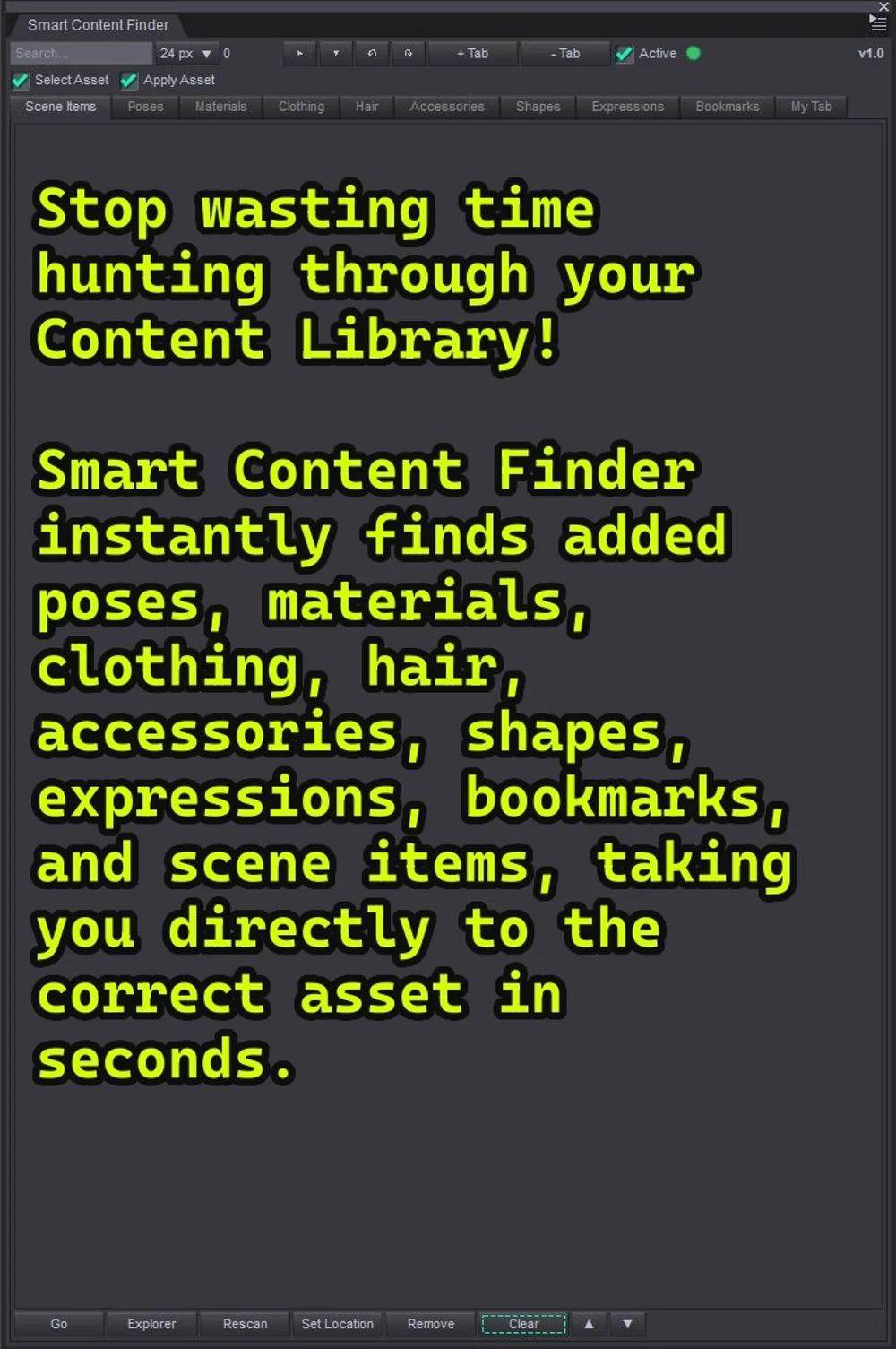
Smart Content Finder finds added poses, materials, clothing, hair, accessories, shapes, expressions, bookmarks and scene items 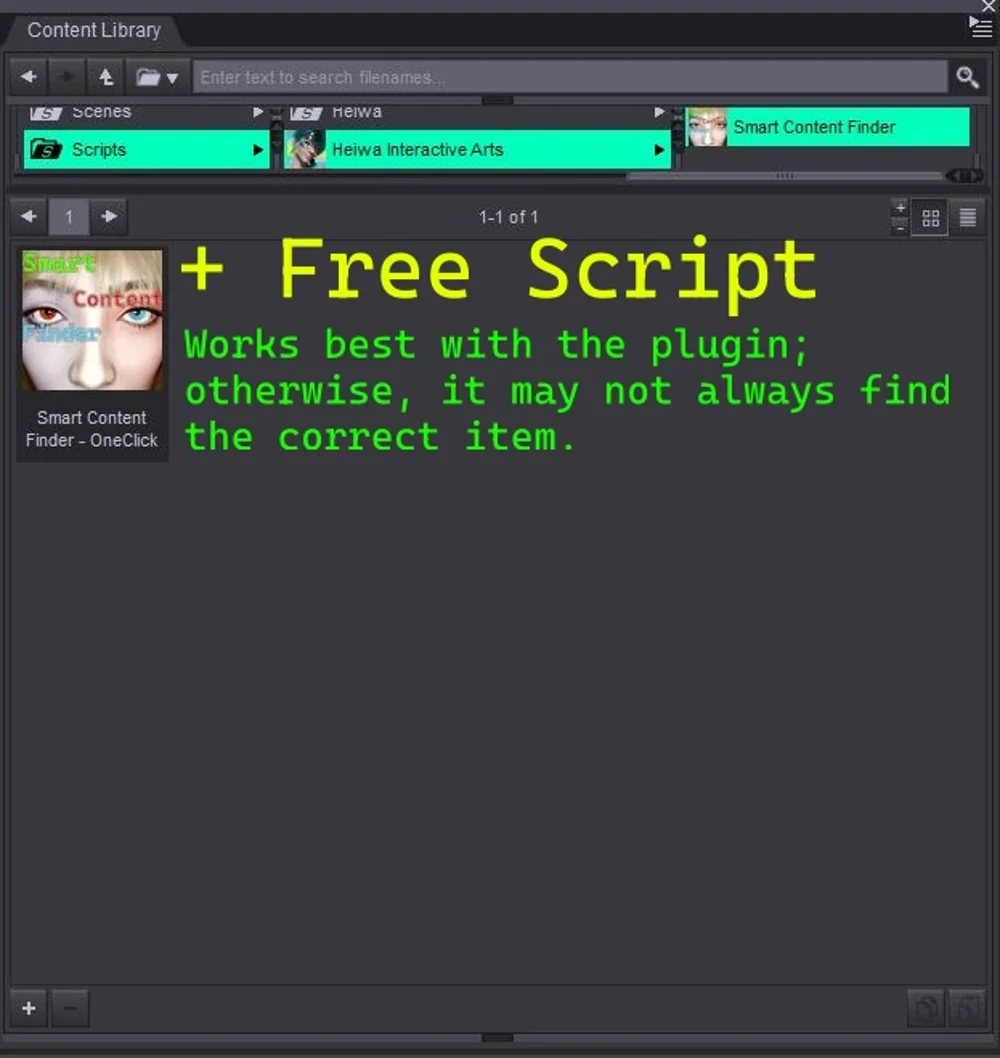
The free OneClick script next to the plugin 
Smart Content Finder: Everything in your scene (AI-generated illustration) 
Smart Content Finder: Clothing and hair (AI-generated illustration) 
Smart Content Finder: Materials and poses (AI-generated illustration)
Overview
Take any item in your scene and find it back in the Content Library: figures, anatomy, clothing, hair, props and environments. No more digging through dozens of folders to remember where something came from.
A dockable pane tracks every item you load, sorts everything into tabs and jumps to the right folder with a double-click. It gets faster and more accurate the more you use it, and Set Location fixes the rare item it can’t place - for good. A free OneClick script is included: select items in the scene and the Content Library jumps to their folder.
New in 1.7: the cache is one file that the plugin and the script share, Set Location fixes always win, the newest load is at the top of every tab, you choose how many folders the tabs keep, and big scenes load lighter.
Works in DAZ Studio 4.5 - 4.x (64-bit and 32-bit) and DAZ Studio 6.25 and newer, with an installer that puts the right file into every DAZ Studio on your PC. No activation and no internet needed. All 1.x updates are included. The license agreement is in the download (Documentation folder).
DAZ Studio is a trademark of Daz Productions, Inc. Smart Content Finder is an independent tool and is not made or endorsed by Daz Productions.
Features
- Scene Items: every item in your scene, grouped by its Content Library folder, with show / hide and delete
- Category tabs: Poses, Materials, Clothing, Hair, Accessories, Shapes and Expressions, collected as you load them, the newest at the top
- Jump to the folder with a double-click, or apply / load the item right away
- Set Location: fix an item’s folder by hand once; your fix is remembered and always wins
- Rescan, Remove and Clear keep the lists tidy
- Your own bookmark lists and colored favorites
- Live filter for every list
- Remembers everything across scenes, saves and restarts in one cache file; Export / Import Cache takes it to another PC
- OneClick script: select items in the scene and the Content Library jumps to their folder
Good to know
Smart Content Finder is very good at finding where things came from, but it can’t be perfect:
- Items in older scenes: for items that were loaded before the plugin was running, the results are very good but not guaranteed. Some resolve a bit shallow or show as “(not found)”.
- Best guesses are marked “(?)”. That’s a name-based guess, so take a quick look to confirm it.
- Plugin and script work best together. The script works on its own, but it’s far more accurate once the plugin has been running and has built its cache.
- Moved your content library? Clear and rebuild the cache afterwards. Fixes made with Set Location are cleared too.
- Presets need the matching figure generation: for example, a Genesis 9 skin isn’t put on a Genesis 8 figure.
- Windows only: Smart Content Finder doesn’t work on Mac at the moment.
- DAZ Studio versions: made and tested for today’s DAZ Studio: DAZ Studio 4 and DAZ Studio 6 (6.25 and 6.26). DAZ Studio keeps changing, and a future version may stop Smart Content Finder from working until it’s updated. We do our best to keep our tools up to date when we can, but we can’t promise an update for every new DAZ Studio version, and some products may stay at their current version. Your statutory rights are not affected.
Found a problem, or something that doesn't work as described? Please tell us: we read every report and do our best to fix it.
Compatibility
- DAZ Studio 4.5 - 4.x, 64-bit and 32-bit
- DAZ Studio 6.25 and newer (one file for 6.25 and 6.26 or newer)
- Windows 10 and 11
- Several content libraries
System requirements
- Windows 10 or 11 for the plugin
- DAZ Studio 4.5 or newer (64-bit or 32-bit), or DAZ Studio 6.25 or newer
- Microsoft Visual C++ v14 Redistributable (2015-2026), usually already installed
Installation
- Download
Smart Content Finder V1.7.zipfrom My Products and unzip it (right-click > Extract All). - Close DAZ Studio and double-click Install Smart Content Finder.bat. It finds every DAZ Studio on your PC (4 and 6, 64-bit and 32-bit) and copies the right file into each one’s plugins folder. If Windows asks for permission, click Yes. If it shows “Windows protected your PC”, click More info, then Run anyway.
- Install the OneClick script too: copy the folder
Heiwa Interactive Artsand the fileHeiwa Interactive Arts.pngfrom the download’sScriptsfolder into the Scripts folder of one of your content libraries. The installer reminds you and lists your Content Library folders. - Start DAZ Studio and open the pane: Window > Panes (Tabs) > Smart Content Finder. The script is in the Content Library under Scripts > Heiwa Interactive Arts > Smart Content Finder.
To install by hand, or for more help, see How To Install.txt in the Documentation folder. Updating: install the new version the same way; your cache, tabs and settings are kept.
Versions and changelog
1.7Latest
- The cache is one file, cache.json, in DAZ Studio’s own data folder (moved over automatically)
- The plugin and the script share that file and never wipe each other’s entries
- Set Location fixes always win and are kept per Genesis character
- The newest load is always at the top of the Poses … Expressions tabs, below your favorites
- Choose how many folders those tabs keep: 20 up to 500
- Remove and Clear stick until you click Rescan
- Lighter loading in big scenes
The full list is in the download (Smart Content Finder - Changelog V1.7.txt).
Reviews
No reviews yet.
Bought Smart Content Finder? Sign in to write a review.